
This is an old revision of the document!
Table of Contents
Bizweaver Tips
This page is for tips and tricks that have been helpful to users. If you have any suggestions please submit them via the Third Wave portal.
Dealing with invalid email addresses
If the Bizweaver email tool is configured to send an email from a variable that contains email addresses and, if a invalid email address is passed, the workflow can stop with errors. The following SQL statement examples can help find bad emails in the data on the SAP Contact Persons Table (OCPR).
Below is to check if the email is not properly formatted, this will not return any emails that are incorrect.
SELECT E_MailL
FROM OCPR
WHERE (E_MailL NOT LIKE '%_@__%.__%'
    OR PATINDEX('%[^a-z,0-9,@,.,_]%', REPLACE(E_MailL, '-', 'a')) <> 0)
    AND isnull(E_MailL,'')<>''
The following version only returns good emails.
SELECT E_MailL
FROM OCPR
WHERE (E_MailL LIKE '%_@__%.__%'
    AND PATINDEX('%[^a-z,0-9,@,.,_]%', REPLACE(E_MailL, '-', 'a')) = 0)
    AND isnull(E_MailL,'')<>''
Adding Multiple Attachments to Emails
In Bizweaver 2.6, a feature was added to allow a user to do this programmatically within the application without any special handling. This can be found here Introduction (Email)
Below is a method for adding multiple attachments to an email by way of a zip file. The program used is 7zip; this is the only prerequisite needed to make this process work. This is just an example and could change depending on how you are using this functionality.
- Example workflow

- 1. Define the proper variables using the Variables tool.
- Outfile is the zip file that 7zip is creating.
- This path is in “C:\ProgramData\Bizweaver\tmpFiles\7zipTest.zip” you can place the output file in any desired location.
- If saved in the above folder path, you must create the “tmpFiles” folder
- InFiles is the folder with all the files that are being zipped.
- '.' is pulling all files in the folder with a period in the file name. Another way to denote any file in a specified folder with a particular file extension use a wildcard “*.<file extension>”.

- 2. Using the WF Exec Tool to have 7zip, call the input folder to zip and output the zip file to the desired location.
- Full Path: This is the location of 7zip.exe
- Add Arguments: This is the command line prompt needed to zip the input file. This also tells the 7zip the name and location of the output file.
- Wait for Execute: This will wait for 7zip to finish zipping the files before continuing the workflow.
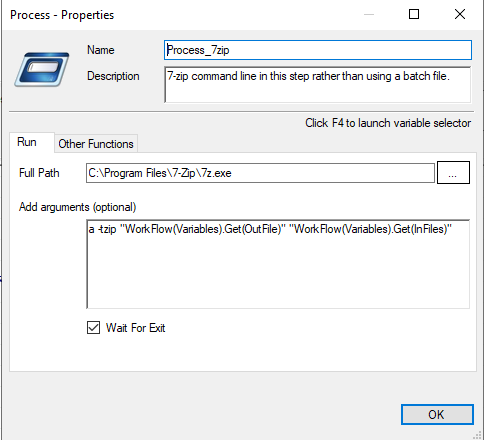
- 3. Add the variable for the OutFile in the attachments section of the Email tool to add the zipped file to the email.
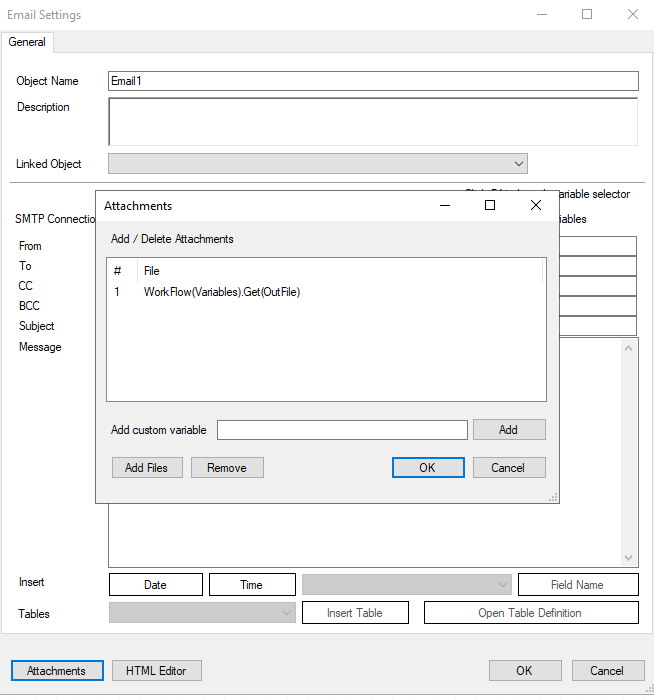
Updating posting periods in SAP Business One
When using Bizweaver and the DI Server if posting periods are updated in SAP the DI Server needs to be restarted. The steps are as follows
- Open the SAP Service Manager from the Start menu.
- Start Menu
- SAP Business One Folder
- Service Manager
- Stop the DI Server
- Navigate to C:\Windows\Temp
- Delete the SMS_OBS_DLL file from Temp
- Start the DI Server
Once this is done if you run a Bizweaver workflow that interacts with the DI Server it will generate the SMS_OBS_DLL file and connect to SAP now using the proper posting period.
Barcode size changing in Crystal Reports
Please review this article for troubleshooting Crystal Reports Barcodes size changing when generating a Crystal Report from Bizweaver Click Here


