
This is an old revision of the document!
Table of Contents
Introduction to Notifications
Notifications in Bizweaver allow the designer to handle notification conditions in a workflow easily. Notifications was introduced as Error Handling in version 2.2 of Bizweaver.
Types of Notifications
- On Start: an email notification will be sent when a workflow starts.
- On Completion: an email notification will be sent when a workflow completes.
- On Error: an email notification will be sent when a workflow encounters an error that stops the workflow.
Selectable options
- Disable during Test Run: This will disable all notifications when selected during a test run.
- Attach error log to email: This will attach the workflow log to the error email.
- If the attachment is too large for an email (25MB) the attachment will be compressed and attached to the email as a zip file.
- If the attachment is still too large in size it the email will indicate this.
Third Wave highly recommends that you enable notifications for errors on all workflows, both existing and new.
Before You Begin
Bizweaver notifications support sending an email to designated persons indicated in the recipient's section of the notification. To do this, at least one SMTP connection is required. And in this connection, a valid user must be defined using the “SMTP Credentials” option as shown below. This is a valid email user that can access the SMTP server and is used as the “From” user when an email is sent.

Enabling Notifications
Notifications are enabled for a workflow by selecting the Notifications Bell. A flyout will be presented and a user can select what type of notification is needed.

Workflow Level

- Select the desired types of notifications
- Select other options (Disable during Test Run, Attach error log to email)
- Disable during test run: When testing, Bizweaver will not send notification.
- Attach error log to email: When an error has been encountered, the Log for that workflow will be attached to the notification email
- If the log is greater than 25MB, it will be compressed
- If the log is still greater than 25MB after compression, it will indicate it could not be attached in the email.
- Select the desired SMTP connection from the drop-down list.
- A SMTP connection is required.
- Enter one or more email addresses for persons to be notified.
- At least one recipient is required.
- Separate multiple recipients with a semi-colon (user1@twbs.com;user2@twbs.com).
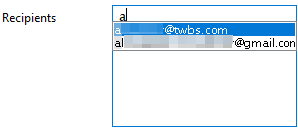
- A type-ahead search provides a list of emails used in other workflows. To add these emails, double click on the desired one, and A semi-colon “;” will be added automatically and does not have to be removed.
- Define the email Content.
- Bizweaver will add the message to the top of the system-generated notification.
- This is not required if no additional content is required other than the system-generated message.

Sample Output
Here are sample emails using the standard formats provided
Workflow Start
Workflow - 93 - Status - Started
Workflow Name - Add Order to SAP
Previously Executed On - Never
Executed Again On - 6/16/2021 4:18:00 PM
Next Execution On - 6/17/2021 4:18:00 PM
Workflow Completion
Workflow - 93 - Status - Completed
Workflow Name - Add Order to SAP
Previously Executed On - Never
Executed Again On - 6/16/2021 4:18:00 PM
Next Execution On - 6/17/2021 4:18:00 PM
Workflow Error
Error found in Bizweaver workflow Add Order to SAP (ID 93)
Date: 6/16/2021 at 4:23 PM

This is custom Content

Details
-----------
Tool Name: SQLCommand39
Tool Type: SQLClient
Tool Status: False
Tool Message: Invalid object name 'ORDRd'.
Exception Message: Invalid object name 'ORDRd'.
Detailed Error Information
System.Data.SqlClient.SqlException (0x80131904): Invalid object name 'ORDRd'.
   at System.Data.SqlClient.SqlConnection.OnError(SqlException exception, Boolean breakConnection, Action`1 wrapCloseInAction)
   at System.Data.SqlClient.TdsParser.ThrowExceptionAndWarning(TdsParserStateObject stateObj, Boolean callerHasConnectionLock, Boolean asyncClose)
   at System.Data.SqlClient.TdsParser.TryRun(RunBehavior runBehavior, SqlCommand cmdHandler, SqlDataReader dataStream, BulkCopySimpleResultSet bulkCopyHandler, TdsParserStateObject stateObj, Boolean& dataReady)
   at System.Data.SqlClient.SqlDataReader.TryConsumeMetaData()
   at System.Data.SqlClient.SqlDataReader.get_MetaData()
   at System.Data.SqlClient.SqlCommand.FinishExecuteReader(SqlDataReader ds, RunBehavior runBehavior, String resetOptionsString, Boolean isInternal, Boolean forDescribeParameterEncryption, Boolean shouldCacheForAlwaysEncrypted)
   at System.Data.SqlClient.SqlCommand.RunExecuteReaderTds(CommandBehavior cmdBehavior, RunBehavior runBehavior, Boolean returnStream, Boolean async, Int32 timeout, Task& task, Boolean asyncWrite, Boolean inRetry, SqlDataReader ds, Boolean describeParameterEncryptionRequest)
   at System.Data.SqlClient.SqlCommand.RunExecuteReader(CommandBehavior cmdBehavior, RunBehavior runBehavior, Boolean returnStream, String method, TaskCompletionSource`1 completion, Int32 timeout, Task& task, Boolean& usedCache, Boolean asyncWrite, Boolean inRetry)
   at System.Data.SqlClient.SqlCommand.RunExecuteReader(CommandBehavior cmdBehavior, RunBehavior runBehavior, Boolean returnStream, String method)
   at System.Data.SqlClient.SqlCommand.ExecuteReader(CommandBehavior behavior, String method)
   at System.Data.Common.DbDataAdapter.FillInternal(DataSet dataset, DataTable[] datatables, Int32 startRecord, Int32 maxRecords, String srcTable, IDbCommand command, CommandBehavior behavior)
   at System.Data.Common.DbDataAdapter.Fill(DataTable[] dataTables, Int32 startRecord, Int32 maxRecords, IDbCommand command, CommandBehavior behavior)
   at System.Data.Common.DbDataAdapter.Fill(DataTable dataTable)
   at SQLClient.RetreiveDataTable()
   at ThirdWaveAssembly.Start(Object[] args)
ClientConnectionId:769484e9-efc8-4e2b-ba03-49c99ac3ee62
Error Number:208,State:1,Class:16
Error Handeling & Decisions
The information from error handling can also be used in Decisions. The two fundamental values are for “Step Status.” The values are True (no error) and False (error encountered). The only thing to remember is to define the values as Boolean rather than Alphanumeric in the decision expression.

It might also be possible to use the Step Message contents; however, it would likely need to pass through a VBScript step to parse out a specific value before the decision.


