
This is an old revision of the document!
Table of Contents
Workflow Schedules Version 2.5 and after
When Bizweaver workflows are active use they can be executed using a schedule. This means that they will execute automatically at a defined time. No user action is required.
A schedule is created by selecting the desired combination of options as described below. If both the schedule and the workflow are enabled, the workflow will execute automatically at the appropriate time.
Creating a Schedule
To create a schedule for a workflow:
- 1. Open the workflow.
- 2. Activate the workflow.
- 3. Click the Schedule link. The link will show when the next execution of the associated schedule is due to occur.

- The Schedule information window opens. This is where the schedule for this workflow is maintained.

- 3. Status Indicates if the schedule is on or off.
- Schedule will not run if off is selected
- 4. Schedule Type
- Recurring - defines the occurrence of a workflow over multiple days
- Single Day - defines the occurrence of a workflow on a single day
- When running a One-Time schedule, the scheduler display will change, and only one date can be selected. This will be the date the schedule runs. Below are the tabs that will be displayed for modification.
- 5. Save Schedule
- This will save the schedule and the workflow.
- The Save workflow compiler will open once this button is clicked.
- 6. Close
- This will close the schedule, and no changes will be saved.
- 7. Message
- This message will show the first run of the schedule based on the current setting.
- This message will display on the Schedule Tab and Run Times Tab.
Schedule Tab
- 1. Start Date and End Date define when the schedule starts and ends.
- Start Date will default to the current date.
- When a pre-existing schedule is opened, the start date will reflect the current date. This will be the new start date when the schedule is saved (it cannot be back-dated). If Cancel is selected or the scheduler window is closed, the start date will remain.
- No End Date option is used if you do not want the schedule to have a set end date.

- 2. Recurring select the type of schedule.
- Options are Daily, Weekly, Monthly.

- 3. The options in this section change depending on the type of schedule selected.
- Daily
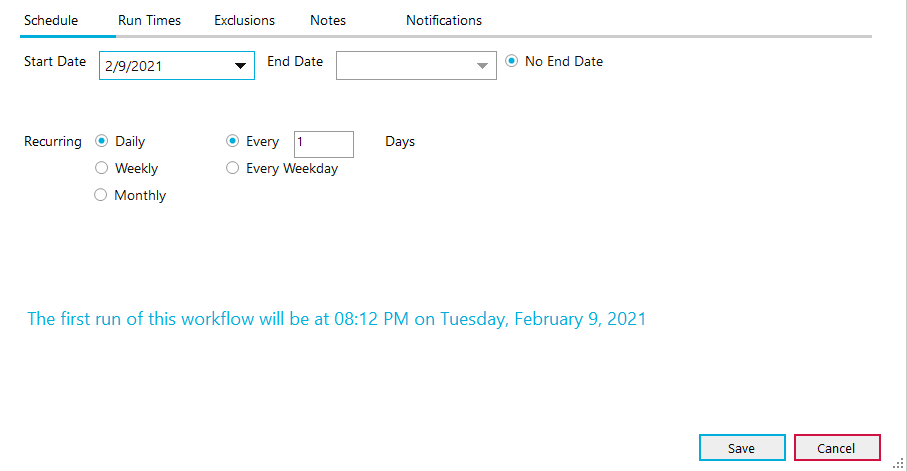

- Weekly


- Monthly

- Day Option - Can select a day within a month to run for a select interval of months.
- Example the 1st day of Every 1 Month will run once a month on the first day of that month.
- The Option - Can select the First, Second, Third, Fourth, and Last of a month, selecting the Day or Weekday option, or a specific day of the week.
- The Weekday selection can only be used in conjunction with the First and Last options within this menu.

Run Times Tab
- 1. Run At defines a specific time a schedule should run during a day.

- 2. Run Continuously defines a schedule running all day during the selected schedule type.

- 3. Run Every defines a schedule running during a set interval of time
- Can run schedules from 12:00 AM to 11:59 PM
- Bizweaver uses the indicated interval period (ex. 5 mins, 12 mins, 20 minutes, i.e., whatever the user enters) calculated from the selected From time to determine the actual first run of the workflow within the selected From-To range.
- The From and To times can only be selected within a given date and cannot span multiple dates/days
- Example: Run Every 7 Min From 02:00 AM To 04:00 AM. The first run of the workflow will be at 2:00 AM. It will run every 7 min within the hour until there is no available time left within that hour. Regardless of when this last 7 min interval occurs in the hour (2:56 AM), it will resume at the beginning of the next hour (3:00 AM). The nature of From/To ranges that span hours is that the interval restarts at the beginning of every hour.
- Important Note: From/To ranges are inclusive of the last hour in the range. In the above example, the 7 min interval will continue through the 4:00 AM hour.
- Minutes - Can choose from 5 to 59 minutes as an interval
- Note the interval period cannot be longer than the From-To period
- Hours - Can choose from 1 to 23 hours as an interval
- Note the interval period cannot be longer than the From-To period
- Do Not Run Between - defines a period that the workflow will not run within any given schedule.

Exclusions Tab
Exclusions are dates (full days) that you can apply to any given schedule on which the workflow will not run. The maximum amount of exclusions is 10.
- 1. Do Not Run On defines a specific day that the workflow will not run.
- Clicking the add button adds another exclusion.
- When the exclusion date has passed the “X” will change to red.

Notes Tab
This tab allows notes to be entered for a schedule.

Notifications Tab
Notifications for On Start and On Completion have now been moved to the Notifications Panel starting in Bizweaver 2.7.
Notifications can be sent to a designated email address when a workflow has started or ended. Up to 3 email addresses can be designated.
The act of restarting the Bizweaver Service triggers these email notifications to be sent for all enabled workflows.

- 1. Send Notifications To
- Email - This checkbox enables or disables the notifications
- If email addresses are left in the email address box and notifications are disabled, the email address will be retained
- Send Email Using - defines the SMPT connection to be used for sending the emails.
- Email Address - defines the email that will receive the notification.
- Add Another - the user can add up to 3 email addresses.
- 2. Send Notifications
- When the workflow starts - this will send an email immediately after the workflow starts.
- When workflow ends - this will send an email immediately after the workflow finishes.


