
This is an old revision of the document!
Table of Contents
TWBS Chargeback Processing
Introduction
Designed for distributors who sell to retail environments, Chargeback Processing enables SAP Business One users to track customer chargeback transactions, reduce chargeback processing time and collect on more unauthorized chargebacks. Chargeback Processing can be used by any company whose customers take unauthorized invoice deductions.
To efficiently process as many as hundreds of chargebacks a month, distributors need the ability to record partial payments and automatically generate a chargeback entry in their general ledger. Chargeback Processing for SAP® Business One enables them to do this and more.
Prerequisites
- Language Support
- TWBS Chargeback Processing screens currently support only the English language option.
- Installation Component Checks
- TWBS Chargeback Processing installation is fast and simple. During installation, the TWBS Chargeback User Guide and relevant files required for the functioning of the product will be copied into the AddOns directory.
- TWBS Chargeback Processing is a client side installation and needs to be installed on each client. During the installation process, TWBS Chargeback Processing will check for the following components:
- MDAC 2.6: Setup checks to see if you have MDAC 2.6 installed on the client. If it cannot find MDAC 2.6 installed, setup will install it for you. You will be prompted to reboot at the end of the install. Please reboot.
- Microsoft .NET Framework Version 2.0 Redistributable Package: Checks if the client has the Microsoft .NET Framework Version 2.0 Redistributable Package installed. If it cannot find the package, setup will install it for you.
Installation Process
The TWBS APP add-on will only be available for installation through the SAP® Business One Server management of extensions for lightweight deployment method. Use of this method requires that the SAP® Business One System Landscape Directory be installed on the SAP® B1 Server.
Chargeback Server Configuration
The TWBS Chargeback Server Properties may be configured by a super-user on the SAP® Business One Server machine.
- Launch the Chargeback Server Properties screen by selecting the Chargeback Server Information menu option under the Administration > Setup > Chargeback Processing menu groups.
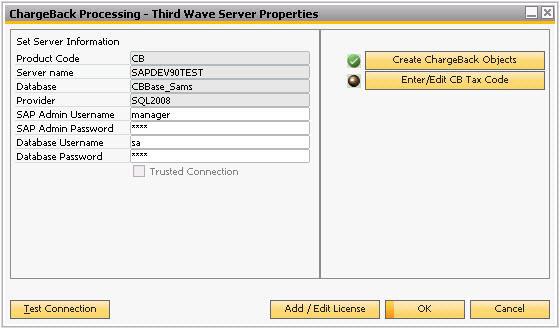
- The Product Code, Server Name, Database, and SQL/Hana Provider values will be determined automatically based on the SAP® Business One company database the super-user is logged into.
- Enter the SAP admin-level user credentials and Database user credentials in the fields provided.
- Click the Test Connection button to test the data interface connection.
- If the credentials entered allow a successful connection, the user will receive a confirmation messagebox.
- Click the Update button.

Licensing the Chargeback Application
The TWBS Chargeback License Key may be entered by a super-user on the SAP® Business One Server machine.
- Launch the Chargeback Server Properties screen by selecting the Chargeback Server Information menu option under the Administration > Setup > Chargeback Processing menu groups.
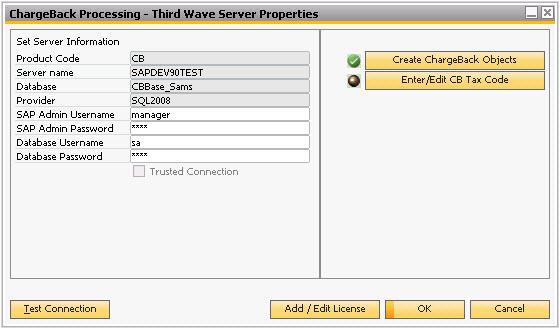
- Click the Add/Edit License button to load the license entry screen.

- Enter the provided License Key into the field on the line with the Chargeback Product Name.
- Click the Update button.


Creation of the Chargeback Database Objects
The TWBS Chargeback database objects may be created by a super-user on the SAP® Business One Server machine.
- Launch the Chargeback Server Properties screen by selecting the Chargeback Server Information menu option under the Administration > Setup > Chargeback Processing menu groups.
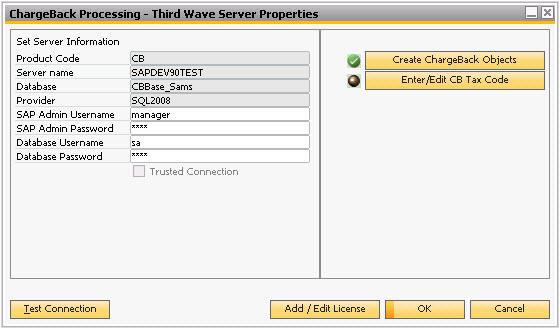
- Click the Create Chargeback Objects button to initiate the database object creation.
- The user will see a progress bar and update messages on the SAP status bar as the process continues.
- The user will be notified once the process is complete.

Designation of the Chargeback Tax Code
The TWBS Chargeback database objects may be created by a super-user on the SAP® Business One Server machine.
- Launch the Chargeback Server Properties screen by selecting the Chargeback Server Information menu option under the Administration > Setup > Chargeback Processing menu groups.
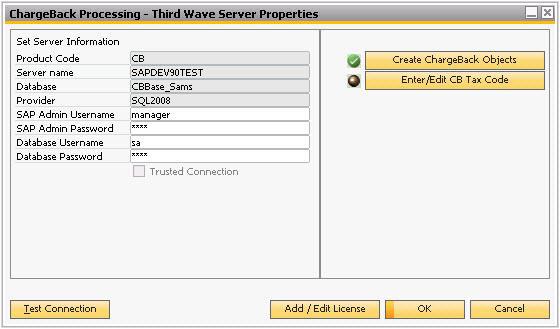
- Click the Enter/Edit CB Tax Code button to load the Tax Code entry form. This designated tax code will be used to create each line item in the A/R Invoice and the Credit Memo documents. This code will most likely be the tax exempt code in your SAP® Business One system.
- Enter the desired Tax Code. Click the Save button.


Chargeback Configuration Steps
- The next step is to create a new Document Numbering Series for the Chargeback Invoice. On the SBO main menu click Administration > System Initialization > Document Numbering > A/R Invoice (Double Click)
- The Name of the new series should always be CB. The TWBS Chargeback Processing application will only recognize a series with that name.

- Repeat same steps for the A/R Credit Memo. The Name of the new series should always be CB. The TWBS Chargeback Processing application will only recognize a series with that name.
- Setup Credit Card Payment Methods: Please enter at least one credit card payment type using the window under Administration > Setup > Banking > Credit Card Payment Methods. This is standard SAP® Business One functionality and should be entered per your company’s policies.
- Create a Clearing Account and a Chargeback GL Accounts using standard SAP® Business One Functionality under Financials > Chart of Accounts window. At this point it is beneficial to look at how these accounts will be used:
- Clearing Account:
This account is used as a “pass through” account to record the following:- The write off of the chargeback amount from the original invoice (this is booked as a debit to the account during the adding of an incoming payment with a chargeback).
- The Chargeback amount on a new A/R Service invoice (this is booked as a credit to the account when the service invoice is created automatically upon adding an incoming payment with a chargeback).
- This account should always be zero as the above two entries are created simultaneously upon the adding of an incoming payment with a chargeback.
There are no system limitations as to which bucket this account should fall under. Typically this is recorded under “Revenues” or “Cost of Sales” sections of your chart of accounts. It is up to the user to create it as he/she sees fit in a manner that is consistent with internal policies.
- Chargeback Account:
- This account records the “Approved” chargeback amounts when the A/R Credit Memo is recorded to write off the Chargeback invoice.
- These accounts will be specified on the different Chargeback Types that the user will define. The Clearing account will be used in the journal entry for the incoming payment and in the journal entry upon the generation of the Service A/R Invoice. The Chargeback account will be used in the creation of the A/R Credit memo once the Chargebacks have been approved.
There are no system limitations as to which bucket this account should fall under. Typically this is recorded under “Revenues” or “Cost of Sales” sections of your chart of accounts. It is up to the user to create it as he/she sees fit in a manner that is consistent with internal policies.

TWBS Chargeback Processing Custom UI Screens
Chargeback Type Maintenance Window
The Chargeback Type maintenance window is used to Add new Chargeback Types as well as to edit existing types.
Launch the Chargeback Type Maintenance screen by selecting the Manage Chargeback Types menu option under the Administration > Setup > Chargeback Processing menu groups

- Chargeback Types Dropdown The Chargeback types dropdown lists all the Chargeback types that have been created. Selecting “Define New” will allow the user to enter a new Chargeback type.
- Chargeback Type - Enter a name for the Chargeback type.
- Chargeback Account - This account records the “Approved” chargeback amounts when the A/R Credit Memo is recorded to write off the Chargeback invoice.
- Clearing Account - This account is used as a “pass through” account to record:
- The write off of the chargeback amount from the original invoice (this is booked as a debit to the account during the adding of an incoming payment with a chargeback).
- The chargeback amount on a new A/R Service invoice (this is booked as a credit to the account when the service invoice is created automatically upon adding an incoming payment with a chargeback).
- This account should always be zero as the above two entries are created simultaneously upon the adding of an incoming payment with a chargeback.
- Add/Update button - Clicking the ADD/update button on this window will create a “dummy” credit card for each Chargeback Type.
Chargeback Reconciliation Window
Launch the Chargeback Reconciliation Window screen by selecting the Reconcile Transactions menu option under the Chargeback Processing menu group.
- Approve/decline chargeback transactions - You can pull up all “Pending” transactions for a given BP and mark it as “approved” or “declined”.
- Inquiry Window - You can also use this window as an inquiry window to view historical transactions for the BP. You can filter the data by chargeback type and Clearing account.

- BP Code - Enter a valid BP code to pull up associated chargeback transactions. The window will by default bring up “pending” transactions. You can change the filters to pull the data you need. Tabbing out of this field will display a list of BP’s with at least one CB transaction in the database.

Selection Criteria Section
This section is to be used only for inquiry/ad hoc reporting purposes.
- CB Types dropdown - This displays available chargeback accounts for the company.Please hit the “Refresh Data” button for the new dataset to show up.
- CB Status dropdown - This dropdown lets you select between the different transactions statuses.
- Refresh Data button - Clicking this button will retrieve the data based on the selection in the above mentioned drop down boxes and populate the matrix.
Matrix
- CB Type This drop down indicates the current chargeback type associated with the transaction. If the transaction is in “Pending” status, the user has the ability to change the Chargeback type to any other reason code. Changes cannot be made to this field once it has been updated to “Approved” or “Declined” status.
- CB Reference Number - This column displays the reference number entered by the user in the CB Ref# field on the Credit Card/Chargebacks tab of the payment means window.
- Orig: Invoice - This column displays the invoice number from which the chargeback transaction originated.
- CB Invoice This column displays the document number of the A/R Service Invoice that was created as a result of the chargeback entry on the Payment Means window.
- Amount This column displays the remaining balance on the chargeback A/R Service invoice.
- Approved This drop is used to set the status of the chargeback transaction. The available values are:
- Pending - This is the default value for all chargeback transactions when it is entered into the system
- Approved - If a user “approves” a chargeback transaction, it means that they have decided to accept the chargeback and remove the amount from the BP’s A/R Balance. An A/R Credit memo is generated to close out the original service invoice created as a result of the chargeback transactions.
- Decline - If a user “declines” a chargeback transaction, it implies that the chargeback is not valid and will remain on the BP’s A/R balance. The chargeback A/R invoice will remain open.
Using TWBS Chargeback Processing
How to Apply Chargebacks
Here are the steps to be followed to successfully enter a chargeback transaction.
<ol style="list-style-type: decimal;"><li>
>
<p>
The process starts when the user receives an incoming payment from the customer. Open the incoming payments window and select the business partner.
</p></li><li>
>
<p>
Once the business partner is selected, all outstanding invoices are populated in the matrix below.
</p></li><li>
>
<p>
Select the invoice(s) to be included in this incoming payment.
</p></li><li>
>
<p>
Click the payment means window. First enter all relevant payment methods i.e. checks, credit cards etc
</p></li><li>
>
<p>
Once this is done, if you have any chargeback transactions to be entered, click on the
</p></li></ol>“Credit Cards/Chargebacks” tab.
<ol start="6" style="list-style-type: decimal;"><li>
>
<p>
From the Credit Card drop select the chargeback reason code. All chargeback codes will be prefixed by “CB_”
</p></li><li>
>
<p>
Enter following mandatory information on this window:
</p><ol style="list-style-type: lower-alpha;"><li>
>
<p>
Amount Due: Enter the chargeback amount in this field
</p></li><li>
>
<p>
Voucher Number: This field is not used by the add-on. However, B1 requires that the user fill in a “dummy” value in this field. You can fill in any value here.
</p></li></ol></li><li>
>
<p>
If you have more than one chargeback reason codes to associate with this payment, click the “Define New” button to the right and repeat steps 6 and 7 to add as many chargeback transactions as required.
</p></li><li>
>
<p>
Once all chargeback codes have entered, click OK on the payment means window.
</p></li></ol>10. Click “Add” on the Incoming Payments window.
23
TWBS Chargeback Processing Modifications to Existing SAP® Functionality
B1 Standard Form Changes
<ol style="list-style-type: decimal;"><li>
>
<p>
Changed the name of the credit card tab from “Credit Card to “Credit Card/Chargeback”
</p></li><li>
>
<p>
Changed the following field names on the “Credit Card/Chargeback” window if the user selects a Chargeback transaction.
</p><ol style="list-style-type: lower-alpha;"><li>
>
<p>
Credit Card Name Chargeback Type
</p></li><li>
>
<p>
GL Account Clearing Account
</p></li><li>
>
<p>
ID No CB Ref#
</p><ol style="list-style-type: lower-roman;"><li>
>
<p>
This field is used to store the reference number associated with each chargeback transaction.
</p></li></ol></li></ol></li><li>
>
<p>
The following field values will be populated by the add-on when a Chargeback type transaction is selected:
</p><ol start="4" style="list-style-type: lower-alpha;"><li>
>
<p>
Credit Card Number: This field is not used by the add-on. However, B1 requires that the user fill in a “dummy” value in this field. A default value of 1 is filled in by the add-on.
</p></li><li>
>
<p>
Valid Until: This field is not used by the add-on. However, B1 requires that the user fill in a “dummy” value in this field. A default value of 12/20 is filled in by the add-on.
</p></li></ol></li></ol>
ChargeBack Processing Events
The following is a list of events where Chargeback overrides/extends the default SAP Business One event:
<ol style="list-style-type: decimal;"><li><p>
Incoming Payments window: When the user enters an Incoming Payment and click “Add”, the add-on checks to see if any chargeback types have been entered and if so does the following…
</p><ol style="list-style-type: lower-alpha;"><li>
>
<p>
Creates 1 A/R Service Invoice per Chargeback type entered in the payment means window.
</p></li></ol></li></ol>
24
Applying TWBS Chargeback Updates
Updates for the Chargeback application will occasionally be released through our TWBS Support Web Portal either to introduce new features, fix existing issues in the application, or both. Third Wave does not send out automatic notices with updates are available, so we recommend that you periodically check for new releases.
Steps for applying patches to the Chargeback application are…
If your previous version of TWBS Chargeback is a version that still utilizes the Database Server.
o Open the Database Service Manager Screen select the Uninstall Service option.

<ol start="15" style="list-style-type: lower-alpha;"><li>
>
<p>
Open the operating system option for administering programs through the Control Panel.
</p><ol start="15" style="list-style-type: lower-alpha;"><li>
>
<p>
Uninstall the option for Third Wave Chargeback Database Server.
</p></li></ol></li></ol>Launch the SAP® Business One Add-On Administration screen selecting the option from the Administration → Add-Ons menu.
Move the entry with Third Wave Chargeback in the Add-On Name column to the left
by highlighting the row and clicking thebutton.
Click the Remove Add-On button on the Add-On Administration screen. Click the Update button on the Add-On Administration screen.
Log back into SAP® Business One to initiate the SAP® Business One client uninstallation.
Once that process is complete, you can begin installing the new updates.
Install the Third Wave Chargeback SAP® Business One client as described in the Installation Process section of this User Guide.

25
Uninstalling the TWBS Chargeback Processing Application
Steps for uninstalling the Chargeback application are…
If your previous version of TWBS Chargeback is a version that still utilizes the Database Server.
o Open the Database Service Manager Screen select the Uninstall Service option.

<ol start="15" style="list-style-type: lower-alpha;"><li>
>
<p>
Open the operating system option for administering programs through the Control
</p><ol start="15" style="list-style-type: lower-alpha;"><li>
>
<p>
Uninstall the option for Third Wave Chargeback Database Server.
</p></li></ol></li></ol>Launch the SAP® Business One Add-On Administration screen selecting the option from the Administration → Add-Ons menu.
Move the entry with Third Wave Chargeback in the Add-On Name column to the left
by highlighting the row and clicking thebutton.
Click the Remove Add-On button on the Add-On Administration screen. Click the Update button on the Add-On Administration screen.
Log back into SAP® Business One to initiate the SAP® Business One client uninstallation.

26
Chargeback Product Support
Support is provided for Third Wave’s Chargeback Processing application. Please direct your inquiries regarding Chargeback's functional and technical capabilities to your SAP® Business One Partner, or to Third Wave Business Systems (TWBS).
Visit the **TWBS Support Web Portal** (login required) o Add/manage support tickets
o Obtain license keys
o View product brochures for other TWBS applications
Visit the **TWBS YouTube Channel**
<ol start="15" style="list-style-type: lower-alpha;"><li>
>
<p>
Overview videos for a variety of TWBS applications o Product training video series and demonstrations
</p></li></ol>
27


