
This is an old revision of the document!
Table of Contents
CC - Application Screens and Custom SAP Tabs
Credit Card Configuration Screen
TWBS Credit Card Processing creates a screen through the SAP® Business One User Interface (UI) that allows for the administration of configuration options that are critical to the performance of the application.
- Click the Credit Card Configuration menu option under the Administration
 Setup Banking TWBS Credit Card Processing menu groups.


- Transaction Authorization Levels – Option boxes that determine which SAP® Business One marketing document transaction authorization levels will be enabled.
- Sales Order checkbox – Allows for authorization, direct charge, or reauthorization at the Sales Order level.
- Delivery checkbox – Allows for authorization, direct charge, or reauthorization at the Delivery Note level.
- A/R Invoice checkbox – Allows for authorization, direct charge, or reauthorization at the A/R Invoice level.
- A/R Down Payment Invoice checkbox – Allows for authorization, direct charge, or reauthorization at the A/R Down Payment Invoice level.
At least one of the four listed authorization levels must be active at all times.
The Credit Memo authorization level is not listed and is active at all times.
- Authorization Markup Type – Option that determines the type of markup, if any, applied at the SAP® Business One company level for transactions processed through TWBS Credit Card.
- None – No markup will be added to the authorization amount.
- Amount – A flat rate amount will be added to the authorization amount.
- Percent – A percentage of the document total will be added to the authorization amount.
Markup functionality is only available at the Sales Order and Delivery Note levels.
Enter desired percentage value as a whole #. For example, 6% markup should be entered as “6.00”, not “0.06”.
If Amount or Percent were selected, enter the flat amount rate or the percentage of the document total to be used as the markup in the field to the right of the markup options.
- Allow Editing of Markup Type at Authorization checkbox – Selection of this configuration allows users the ability to override the default markup values at the time of authorization.
- Enable AVS Field Validation checkbox – Selection of this configuration requires that the address information for each authorization be passed to the gateway for validation.
- Process Credits Not Linked to an Invoice checkbox – Selection of this configuration will allow users of the application to process Credit Memos that are not linked to an A/R Invoice in the SAP® Business One system.
Selection of this option will allow any user to process refunds to credit cards associated to a Business Partner without any system restrictions because the Credit Memo is not linked to an originating Invoice.
Account setup to facilitate the processing of unlinked Credit Memos with your payment gateway may be required, in addition to checking this configuration. Please check with your payment gateway.
- Create Incoming Payment for Consolidated BP checkbox – Selection of this configuration will create any SAP® Business One Incoming Payments for the consolidated business partner if there is one associated with the Invoice/Credit Memo business partner.
When utilizing the consolidated BP option, be sure that there are no cards on the business partner with the same Credit Card Name as any cards associated with the consolidated business partner.
- Payment Terms – This field will allow you to select the SAP® Business One Payment Terms code that will be used to designate documents that will be handled by the TWBS Credit Card Processing application..
Once you've selected a Payment Terms code and starting authorizing and processing through the TWBS Credit Card Processing application, is it advised that you not change the Payment Terms code. Changing this value will compromise the application's ability to complete the processing on any marketing documents that are in the middle of the process at the time the change is made.
- OK/Update button
- OK – Closes the screen.
- Update – Updates the TWBS Credit Card configuration information.
- Cancel button – Closes the screen.

Credit Card Gateway Profile Maintenance Screen
TWBS Credit Card Processing creates a screen through the SAP® Business One User Interface (UI) that allows for the maintenance of credit card gateway processing accounts that are critical to the performance of the application.
- Click the Gateway Profile Maintenance menu option under the Administration Setup Banking TWBS Credit Card Processing menu groups.
Clicking on the line of a gateway profile account on the upper grid list will display the profile account settings in the field below.
To add a new gateway profile account, click on the Add icon from the SAP menu bar.

Gateway Profile Matrix - A listing at the top of the form to display basic information for the existing gateway profile accounts. Clicking on a line on this matrix will display the complete data for the profile account in the fields below.
- Processor column – The credit card processing company of the gateway profile.
- Configuration Name column – The unique name for the profile assigned by the user when created.
- Currency column – The currency code of the gateway profile.
- Active column – Designation (Yes/No) if the gateway profile is active in the application.
- Transaction Mode column – The transaction mode of the gateway profile..
Gateway Profile Detail Fields - On selection of a listing in the Gateway Profile Matrix at the top of the form, the fields in this section of the screen will display the complete data for the profile account.
- Active checkbox – This designates if the gateway profile is active in the application.
- Processor – This field allows for the selection of the payment gateway.
- Payment Processor – This field allows for the selection of the payment processing center for the gateway profile.
The Payment Processor field is only active for the CyberSource gateway.
- Configuration Name – This field allows for the entry of a unique identifying name for the gateway profile.
- Currency – This field allows for the selection of the currency code for the gateway profile.
- Transaction Mode option – This option allows for the selection of the desired payment gateway.
- Live – This specifies all transactions are being run in a live mode.
- Test – This specifies all transactions are being run in a test mode.
- Demo – This specifies all transactions are being run in a demo mode.
Selection of the payment gateway Processor field will affect the field labels and enabled value of the section of fields below which are used for entering the API login credentials for the selected processing gateway.
- Authorize.Net – United States (US) based payment gateway.
- LogIn ID – The unique Login ID of the account for the payment gateway.
- Transaction Key – The unique password key of the account for the payment gateway.
- CyberSource – United States (US) based payment gateway.
- Merchant ID – The unique Merchant ID of the account for the the payment gateway.
- Transaction Key – The unique password key of the account for the payment gateway.
- EVO/PayFabric – United States (US) based payment gateway.
- Device ID – The unique Device ID of the account for the the payment gateway.
- Device Password – The unique Device Password key of the account for the payment gateway.
- Gateway Key – The unique Gateway Key of the account for the payment gateway.
- PayEezy – United States (US) based payment gateway.
- API Key – The unique API Key of the account for the payment gateway.
- API Secret – The unique API Secret of the account for the payment gateway.
- Merchant Token – The unique Merchant Token of the account for the payment gateway.
- TA_Token – The unique TA_Token of the account for the payment gateway.
Once the values for the Log In ID and Transaction Key have been entered and saved, the fields will not display the values. They will display as encrypted values.
- Re-authorization Threshold – This option allows for the specification of the period of time before an authorization expires.
This information should be available from your merchant banking institution and is specific to the end customer account.
- Enable Level II Integration checkbox – This option enables Level II data transmission to the payment gateway.
- Enable Level III Integration checkbox – This option enables Level III data transmission to the payment gateway.
Due to processing issues at the gateway, the Enable Level III Integration option is no longer available for Authorize.Net in the latest version of the TWBS Credit Card Processing software.
If Level II Integration or Level II/Level III Integration are enabled, the Require AVS Checking checkbox on the Credit Card Configuration screen should be enabled. Card address information is required information at these levels and this address information should be saved when payment profiles are saved at the gateway.
- Enable Dynamic Descriptors checkbox – Selecting this configuration option enables the application to pass additional information to the CyberSource gateway to be displayed on the customers statements. Enabling dynamic descriptors will also require customization to a database view to retrieve the appropriate data to be passed to the gateway. Data required will vary by which CyberSource data center your transactions are processed though.
The Enable Dynamic Descriptors configuration is only available on the CyberSource gateway.
- Enhanced Web Service Logs checkbox – This option enables the application to log response information from the gateway for each transaction to the users local log file to assist in troubleshooting transaction issues.
- Allow Partial Authorizations Returned from Gateway checkbox – Selecting this configuration option enables the gateway to return a partial authorization if the full amount of the authorization request is not available on the selected profile(s). This configuration will override any customer default settings configured on the gateway account.
The Allow Partial Authorizations Returned from Gateway configuration is only available on the Authorize.Net gateway.
- OK/Update button
- OK – Closes the screen.
- Update – Updates the TWBS Credit Card configuration information.
- Cancel button – Closes the screen.
- Clear button – Clears the gateway profile detail fields on the screen.
- Delete button – Deletes the gateway profile if it is not assigned to a Business Partner or marketing document.
Payment Terms Update Utility Screen
TWBS Credit Card Processing creates a screen through the SAP® Business One User Interface (UI) that allows for the update of the Payment Terms code on selected Business Partners.
- Click the Payment Terms Update Utility menu option under the Administration Setup Banking TWBS Credit Card Processing menu groups to load the Credit Card Payment Terms Update Utility screen.
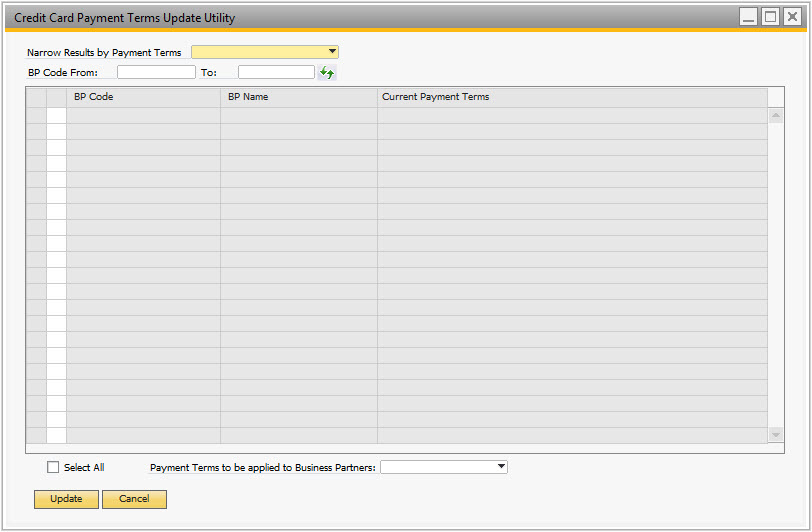
- Narrow Results by Payment Terms – Allows for the specification of a range of Business Partner codes to narrow the data results.
- BP Code Range – Allows for the specification of a range of Business Partner codes to narrow the data results.
- Payment Terms Update Matrix Columns – The matrix on the Credit Card Payment Terms Update Utility screen displays the following columns of information.
- BP Code – The customer's unique ID in the SAP® Business One system.
- BP Name – The customer's name as defined in the Business Partner master data form.
- Current Payment Terms – The payment terms code currently assigned to the Business Partner.
- Payment Terms to be Applied to Business Partner – Selection of the Payment Terms code that the screen will be applied to all selected Business Partners.
- Update button – Updates the selected Business Partners with the selected Payment Terms code.
- Cancel button – Closes the screen.
Business Partner Master Data Screen - Credit Card Tab
Credit Card Configuration Screen
Credit Card Configuration Screen
TWBS Credit Card Processing adds a new tab to the Business Partner Master Data screen through the SAP® Business One User Interface (UI) that allows for the administration of credit card data that is associated with the partner.
- Click the Business Partner Master Data menu option under the Business Partner menu to load the Business Partner Master Data screen.
- Click the Credit Card tab
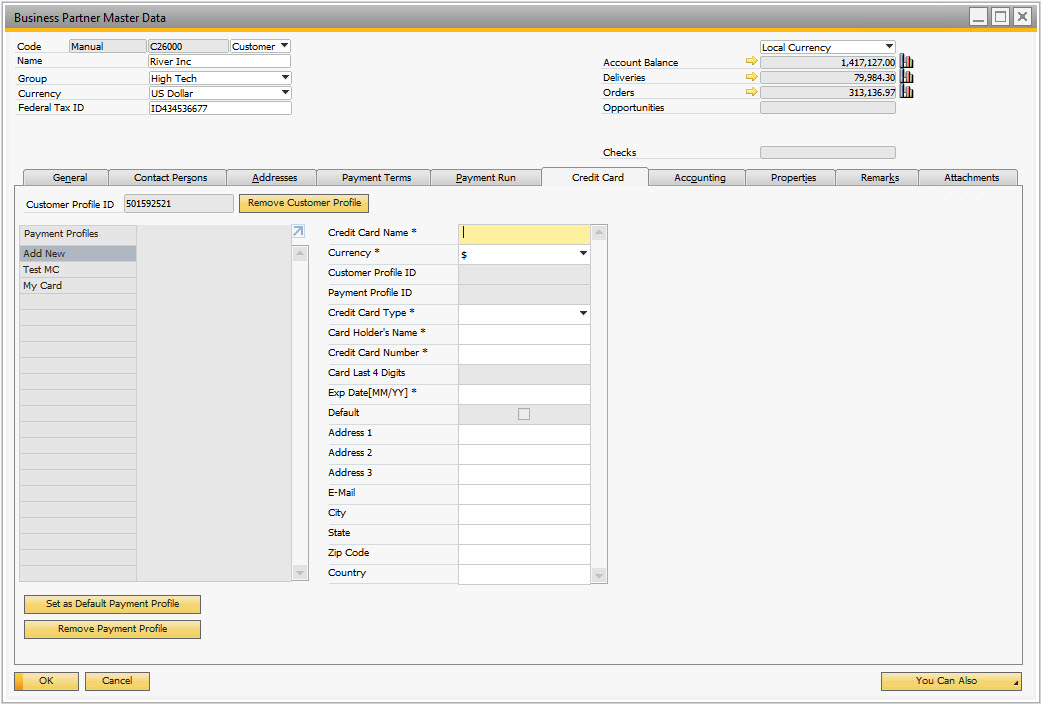
- Customer Profile ID – This field will store the unique customer profile ID # assigned to the Business Parter on your credit card gateway acccount.
If the customer does not already have a profile ID # associated with them at the gateway, one will be automatically created for them during the process of adding the first payment profile for the business partner.
- Remove Customer Profile button – This button will be enabled if the business partner is not in Add mode and has an existing customer profile ID #. If a customer profile # value does not exist for the business partner, the button will be disabled. Click of this button will transmit a request to the credit card gateway to remove the Customer Profile ID # on their system associated with the business partner.
Removal of the Customer Profile from the gateway will automatically remove any existing Customer Payment Profiles (cards) stored on the gateway under the customer profile being removed. This information cannot be recovered once it has been removed.
Credit Card List Matrix
The matrix located on the left side of the Credit Card tab will list all of the credit card payment profiles in the SAP® Business One system associated with the Business Partner that are stored on the gateway.
Selecting the Payment Profile value of an existing card payment profile will load the data for that payment profile into the matrix on the right side of the tab.
Selecting the Add New option will clear any values from the matrix fields on the right side of the tab and allow the user to enter information for a new credit card payment profile associated with the business partner.
Credit Card Data Matrix
The matrix located on the right side of the Credit Card tab will display the data for the credit card payment profiles in the SAP® Business One system associated with the Business Partner that are stored on the gateway.
- Credit Card Name column – A unique name for a payment profile stored on the gateway associated with the business partner. Required field.
- Customer Profile ID column – A unique gateway assigned numerical ID for the business partner profile.
- Payment Profile ID column – A unique gateway assigned numerical ID for the payment profile associated with the business partner profile.
- Credit Card Type column – The type of credit card (i.e. Visa, Mastercard, etc.) as defined in SAP® Business One. Required field.
- Card Holder's Name column – The name of the individual or company account holder on the card. Required field.
- Credit Card Number column – The credit card account number. Required field.
Once data of the card has been saved and transmitted to the gateway to be stored in a payment profile, this field will be cleared. The Card Last 4 Digits field will display the appropriate value for the card entered. The credit card number is not saved locally and the entire credit card number cannot be viewed by any user once it has been saved.
- Card Last 4 Digits column – The last 4 digits of the credit card account number.
- Exp Date [MM/YY] column – The expiration date of the credit card. Required field.
- Default column – Selection designates this as the default card for loading information into the TWBS CC Authorization screen.
- Address 1 column – The address 1 information for the card holder's address.
- Address 2 column – The address 2 information for the card holder's address.
- Address 3 column – The address 3 information for the card holder's address.
- E-Mail column – The e-mail address for the card holder.
- City column – The city for the card holder's address.
- State column – The state for the card holder's address.
- Zip Code column – The postal code for the card holder's address.
- Country column – The country code for the card holder's address.
If address validation functionality for the gateway is turned on, then the address fields required for the gateway will also be identified by an asterisk (*) next to the field name in the matrix.
Card security code (CVV) information cannot be stored in the system, either on the business partner payment profile or the transaction record. This security information must be entered manually at the time of authorization for submission to the payment gateway.
- Set as Default Payment Profile button – When confirmed by the user, this action designates the selected payment profile as the default card for the partner when loading the TWBS CC Authorization screen.
- Remove Payment Profile button – When confirmed by the user, this action removes the selected payment profile for the partner from the card gateway.
Credit Card Authorization Screen
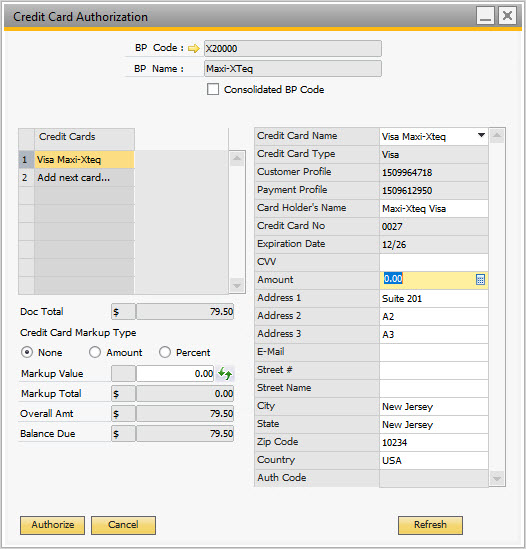
TWBS Credit Card Processing creates a screen through the SAP® Business One User Interface (UI) that allows for the authorizing of individual or multiple credit cards against marketing documents.
If there is a default credit card selected for the Business Partner of the marketing document, that card's data will be loaded into the Authorization screen. This card can be changed to any other card associated with the Business Partner before authorization.
Credit Cards Listing Matrix
The matrix located on the left side of the Credit Card Authorization screen will list all of the credit cards used in the authorization of the marketing document.
- Selecting the Credit Card Name value of a card from the listing matrix will load the data for that card authorization in the matrix on the right side of the screen.
- Selecting the Add Next Card… option will clear any values from the matrix fields on the right side of the screen to allow the user to enter information for a new credit card to be used in the authorization of the document.
Credit Card Data Matrix
The matrix located on the right side of the Credit Card Authorization screen will display the data for the credit card authorization.
- Credit Card Name column * – The unique name value for the card.
- Credit Card Type column * – The type of credit card (i.e. Visa, MasterCard, etc.).
- Customer Profile ID column – The gateway business partner profile ID #.
- Payment Profile ID column – The gateway business partner payment profile ID #.
- Card Holder's Name column * – The name of the individual or company on the credit card.
- Credit Card Number column * – The credit card account number.
- Exp Date [MM/YY] column * – The credit card expiration date in the format indicated.
- ID Number column – Card security code which must be manually entered.
- Amount column * – Amount to be authorized.
- Address 1 column – Address 1 information for the card.
- Address 2 column – Address 2 information for the card.
- Address 3 column – Address 3 information for the card.
- Street # column – Street address # for the card address.
- Street Name column – Street name for the card address.
- City column – City for the card address.
- State column – State/Province for the card address.
- Zip Code column – Postal code for the card address.
- Country column – Country for the card address.
* = Required field
Card security code (CVV) information cannot be stored in the system, either on the Business Partner record or the transaction record. This security information must be entered manually at the time of authorization for submission to the payment provider.
If the configuration setting for Allow Editing of Markup Type at Authorization is selected, the Markup Type and Markup Value fields will be enabled so that the user can change the default values at the time of authorization.
- Credit Card Markup Type option - Select the markup type for the SAP® Business One company database default
- None option – No markup will be applied to the authorization amount.
- Amount option – A flat rate will be added to the authorization amount.
- Percent option – A percentage of the document total will be added to the authorization amount.
Markup functionality is only available at the Sales Order or Delivery Note levels.
- Markup Value - If Amount or Percent were selected, enter the flat amount rate or the percentage of the document total to be used as the markup in the field to the right of the markup options.
Enter desired percentage value as a whole #. For example, 6% markup should be entered as “6.00”, not “0.06”.
- Doc Total – The document total from the SAP® Business One marketing document being authorized.
- Markup Total – The total value of the markup.
- Overall Amt – The combined value of the Doc Total and the Markup Total.
- Balance Due – The Overall Amt minus any amounts already assigned to credit cards for authorization. The balance due is the total remaining to be assigned for authorization.
- Authorize button – Submission of the entered credit card data to the payment provider for authorization.
- Refresh button – Refresh the credit card data on the Authorization screen.
Sales Order Reauthorization Screen
TWBS Credit Card Processing creates a screen through the SAP® Business One User Interface (UI) that allows for the reauthorization of marketing documents where the previous authorization has exceeded the defined reauthorization threshold from the configuration screen or the original order has been split into multiple delivery notes.
- Click the Sales Order Reauthorization menu option under the Sales - A/R menu group to load the Sales Order Reauthorization screen.
Documents must be selected with a check in the first column and either have previous authorization data to be used or have a new payment profile associated with the business partner selected in order to be processed.
Expired Authorizations Tab
This matrix will display Orders for which the previous authorization for the Sales Order has expired because the difference between that authorization date and the current date exceeds the defined Reauthorization threshold period.

Partial Shipped Orders Tab
This matrix will display Orders for which the Sales Order was partially converted to one or more Delivery Notes, but there are remaining items on the Sales Order to be delivered. All previous authorizations have been utilized during the previous deliveries.

Sales Order Matrix – Each tab of the Sales Order Reauthorization screen displays the same columns of information.
- Select column – Selects the document for processing.
- Doc # column – The document number of the Sales Order.
- Card Code column – The customer's unique ID in the SAP® Business One system.
- Customer Name column – The customer's name as defined in the Business Partner master data form.
- Phone # column – The contact telephone # associated with the Business Partner record.
- Card Type column – The type of credit card (i.e. Visa, MasterCard, etc.).
- Card Name column – The unique name value for the card.
- Name on Card column – The name of the card holder.
- Customer Profile ID column – The gateway business partner profile ID #.
- Payment Profile ID column – The gateway business partner payment profile ID #.
- Card # column – The last four digits of the credit card account number.
- Exp. Date column – The credit card expiration date in MM/YY format.
- CVV Code column – Card security code which must be manually entered.
- Currency column – The currency code from the Sales Order being reauthorized.
- Doc Total column – The document total from the Sales Order being reauthorized.
- Reauthorize Amt. column – The amount remaining on the Sales Order being reauthorized.
- Last Auth Date column – The date of the last authorization for the Sales Order.
- Consolidated BP column – The Card Code value of the consolidated Business Partner if there is one associated with the Sales Order Business Partner.
- Authorize button – Submission of the entered credit card data to the payment provider for authorization.
- Choose Card button – Allows for the selection of a payment profile associated with the business partner for the sales order for reauthorization.
- Refresh button – Refreshes the data on the Sales Order Reauthorization screen.
Batch Processing Screen
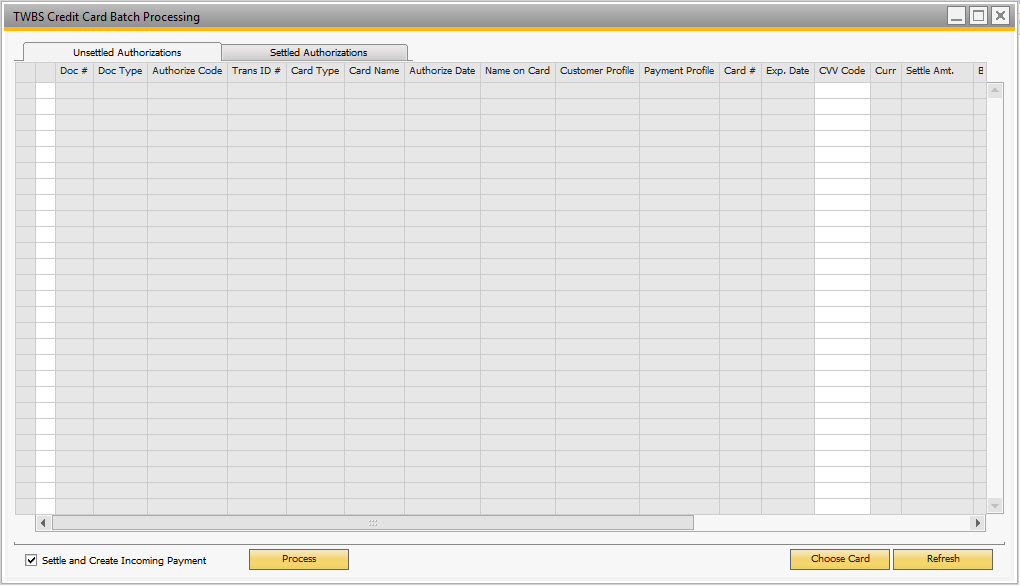
TWBS Credit Card Processing creates a screen through the SAP® Business One User Interface (UI) that allows for the processing of multiple documents for the purpose of settling authorizations with the payment providers and creation of the Incoming Payment in the SAP® Business One system utilizing the Data Interface (DI).
- Click the Batch Processing menu option under the Banking Incoming Payments TWBS Credit Card Processing menu groups to load the Batch Processing screen.
Documents must be selected with a check in the first column and either have an existing authorization or have a payment profile associated with the business partner selected in order to be processed.
Unsettled Authorizations Tab
Settled Authorizations Tab

The matrix on the Batch Processing screen tabs will list all of the A/R Invoices, A/R Down Payment Invoices, and Credit Memos in the SAP® Business One system with the Payment Terms code designated on the TWBS Credit Card Processing configuration screen. Documents will be separated into two groups based upon if the authorizations have been settled with the payment provider.
Authorization Matrix – Each tab of the Batch Processing screen displays the same columns of information.
- Select column – Selects the document for processing.
- Doc # column – The document number of the document.
- Doc Type column – The type of the marketing document.
- A/R Invoices are designated with a document type of IN.
- Credit Memos are designated with a document type of CN.
- A/R Down Payment Invoices are designated with a document type of DT.
- Authorization Code column – The authorization code for the existing authorization, if any.
- Trans ID # column – The transaction ID # for the existing authorization, if any.
- Card Type column – The type of credit card (i.e. Visa, MasterCard, etc.).
- Card Name column – The unique name value for the card.
- Authorize Date column – The date the existing authorization was performed, if any.
- Name on Card column – The name of the card holder.
- Customer Profile ID column – The gateway business partner profile ID #.
- Payment Profile ID column – The gateway business partner payment profile ID #.
- Card # column – The last 4 digits of the credit card account number.
- Exp. Date column – The credit card expiration date in MM/YY format.
- CVV Code column – The credit card security code which must be manually entered.
- Currency Code column – The currency code of the authorization.
- Amount column – The amount of the authorization.
- BP Card Code column – The customer's unique ID in the SAP® Business One system.
- BP Name column – The customer's name as defined in the Business Partner master data form.
- Address 1 column – The address for the card address.
- Street # column – The street address # for the card address.
- Street Name column – The street name for the card address.
- City column – The city for the card address.
- State column – The state/province for the card address.
- Zip column – The postal code for the card address.
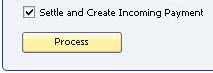
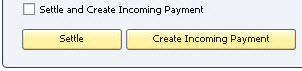
- Settle and Create Incoming Payment check box – This option will determine if the Batch Processing screen will function in one step or two.
- If the option is selected, the screen will display the Process button and will attempt to both settle the authorization and create the Incoming Payment in one step.
- If the option is not selected, the screen will display the Settle and Create Incoming Payment buttons and will attempt to settle the authorization or create the Incoming Payment in separate steps.
- Process button – Settles the authorization(s) for the selected documents with the payment provider and creates the Incoming Payment in SAP® Business One.
- Settle button – Settles the authorization(s) for the selected documents with the payment provider.
- Create Incoming Payment button – Creates the Incoming Payment for selected documents that have had their authorization(s) previously settled.
- Choose Card button – Allows for the selection of a credit card associated with the Business Partner of the document for authorization.
- Refresh button – Refreshes the data on the Batch Processing screen.
Batch Authorization Screen
TWBS Credit Card Processing creates a screen through the SAP® Business One User Interface (UI) that allows for the authorizing of multiple documents at one time with the payment terms code specified in the Credit Card Configuration screen that have not been fully authorized.
- Click the Card Authorization menu option under the Banking Incoming Payments TWBS Credit Card Processing menu groups to load the Batch Authorization screen.
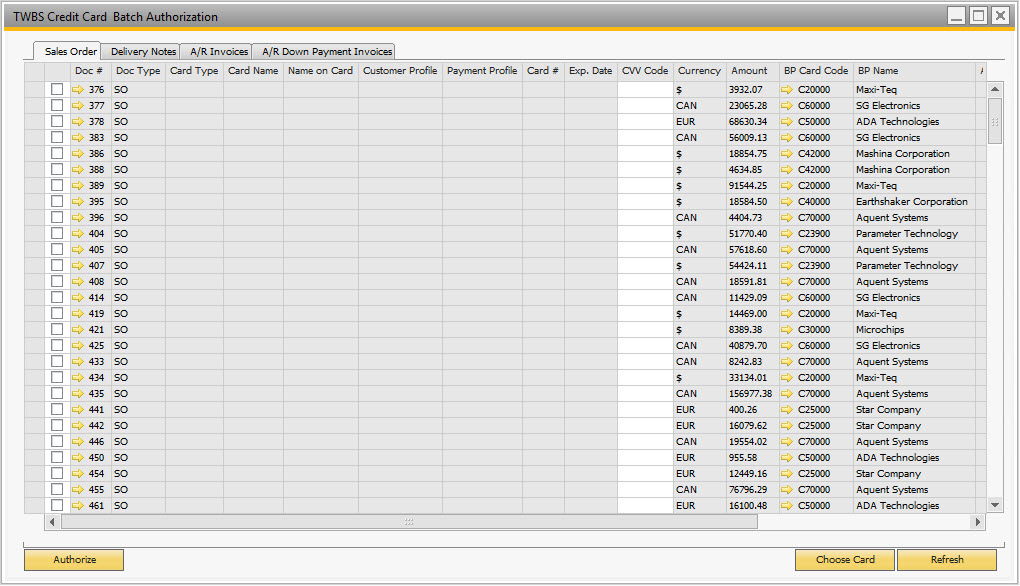
Separate tabs will be displayed for Sales Orders, Delivery Notes, A/R Invoices, and A/R Down Payment Invoices for each document type that is activated on the Credit Card Configuration screen. Non-active document types will not display tab on the screen.
Multiple card authorization functionality is not available on the Batch Authorization screen.
Markup editing functionality is not available. Sales Orders and Delivery Notes authorized through the Batch Authorization screen will include the default Markup type and value.
Documents must be selected with a check in the first column and have a payment profile associated with the business partner selected in order to be processed.
Document Matrix - Each tab of the Batch Authorization screen displays the same columns of information.
- Select column – Selects the document for processing.
- Doc # column – The document number of the document.
- Doc Type column – The type of the marketing document.
- Sales Orders are designated with a document type of SO.
- Delivery Notes are designated with a document type of DN.
- A/R Invoices are designated with a document type of IN.
- A/R Down Payment Invoices are designated with a document type of DT.
- Card Type column – The type of credit card (i.e. Visa, MasterCard, etc.).
- Card Name column – The unique name value for the card.
- Name on Card column – The name of the card holder.
- Customer Profile ID column – The gateway business partner profile ID #.
- Payment Profile ID column – The gateway business partner payment profile ID #.
- Card # column – The last 4 digits of the credit card account number.
- Exp. Date column – The credit card expiration date in MM/YY format.
- CVV Code column – The credit card security code which must be manually entered.
- Currency Code column – The currency code of the authorization.
- Amount column – The amount of the authorization.
- BP Card Code column – The customer's unique ID in the SAP® Business One system.
- BP Name column – The customer's name as defined in the Business Partner master data form.
- Address 1 column – The address for the card address.
- Street # column – The street address # for the card address.
- Street Name column – The street name for the card address.
- City column – The city for the card address.
- State column – The state/province for the card address.
- Zip column – The postal code for the card address.
- Authorize button – Transmits requests for the selected documents/payment profiles to the gateway for transaction authorizations.
- Choose Card button – Allows for the selection of a credit card associated with the Business Partner of the document for authorization.
- Refresh button – Refreshes the data on the Batch Authorization screen.
Card Expiration Search Screen
TWBS Credit Card Processing creates a screen through the SAP® Business One User Interface (UI) that allows for the searching of credit cards associated with Business Partners that will expired by a selected date. Users can then drill back to the Business Partner Master Data record and either update the card information or remove the card.
- Click the Card Expiration Search menu option under the Banking Incoming Payments TWBS Credit Card Processing menu groups to load the Card Expiration Search screen.
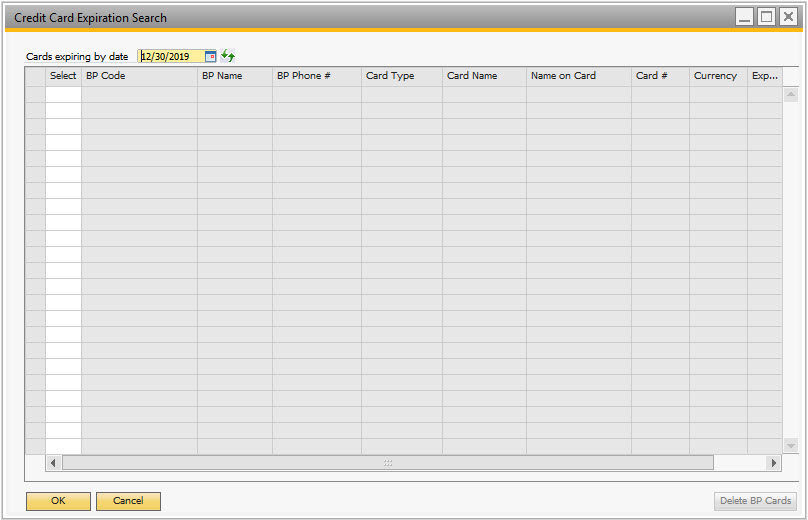
- Cards Expiring by Date – The selected date that will be compared against Business Partner credit card expiration dates to load the card data to the screen.
- Refresh (
 ) button – Refreshes the data on the Expiration Search screen according to the date selected in the Cards Expiring by Date field.
 - Card Matrix Columns – The matrix on the Card Expiration Search screen displays the following columns of information…
- Select column – Select the business partner associated credit card so that it can be removed from the system.
- BP Code column – The customer's unique ID in the SAP® Business One system.
- BP Name column – The customer's name as defined in the Business Partner master data form.
- BP Phone # column – The customer's phone number in the Business Partner master data form.
- Card Type column – The type of credit card (i.e. Visa, MasterCard, etc.).
- Card Name column – The unique name value for the card.
- Name on Card column – The name of the card holder.
- Card # column – The credit card account number (masked).
- Exp. Date column – The credit card expiration date in MM/YY format.
- OK button – Closes the screen.
- Cancel button – Closes the screen.
- Delete BP Cards button – Selected business partner payment profiles, upon confirmation, will be removed from the gateway.
Once a payment profile's information has been removed from the gateway, it cannot be recovered and must be re-entered manually.


