
This is an old revision of the document!
Table of Contents
Installation Preparation
Database Requirements
Versago stores configuration and other related data in a Microsoft SQL Server database. No other databases for storing configuration information are supported at this time. The database can be created in an existing SQL Server instance or a new instance can be created.
- Microsoft SQL Server 2012 or higher
- Microsoft SQL Server Express 2012 or higher
The above requirement applies only to the storage of configuration information. Connections to both SQL Server and HANA databases for reporting are supported. And additional databases may be added in the future based on demand.
Important Notifications
Do not use Microsoft Internet Explorer (IE) for the Versago installation process. IE is not longer directly supported for Versago and it may, or may not, work as expected. Download Chrome, Firefox, or any other HTML5-compatible browser and set it as the default on your Versago server.
Versago v2.3 and higher requires that both Microsoft .Net Framework v3.5 and .Net Framework v4.7.2 or higher be installed before beginning an installation. v3.5 should be installed from the Windows Server installation disk. v4.x application can be downloaded from Microsoft. A restart of the server is generally required after installation.
In some instances we have found that installing Versago can force a server reboot. We believe it may be associated with having Windows Updates pending. Be sure there are no pending Windows Updates to help avoid the reboot during the Versago installation. If there are pending updates, install them first before installing Versago.
HANA Database Connections
The SAP HANA Client should be installed on the machine where Versago is installed if you will be connecting to a HANA database to retrieve information. This application is automatically installed if SAP Business One for HANA is installed on the machine. An installation package is available from Third Wave Business Systems if it is not already installed.
Beginning with Versago v2.4.11, HANA Client v2.4.171 or higher must be installed on the Versago server. You can download the installation package from https://portal.twbs.com. This client is also used for Bizweaver.
Please follow the instructions. .
- If downloaded from the TWBS portal, extract the HANA client installation package from the .zip archive.
- Use the 64 bit HANA Client
- Right-click on “hdbsetup.exe” and select the “Run as administrator” option.
- Click the “Install new SAP HANA database client” option.
- Use the default install directory, C:\Program Files\sap\hdbclient
- Click <Next> to move through the installation wizard
HANA Drivers for Crystal Reports
A specific ODBC driver is required if you plan to use Crystal Reports as a presentation mechanism with Versago and Bizweaver. The name of this driver is B1CRHPROXY32.
As of May/2020 it appears that the only way to get this driver installed is to install the SAP Business One 32-bit HANA client on the Versago server. This should be done before installing Versago if possible.
- If this is done before Versago is installed you will need to remove the “SAP Crystal Reports Runtime engine for .NET framework” The Versago installation process will then install the correct version of the application.
- If this is done after Versago is installed you will need to remove the “SAP Crystal Reports Runtime engine for .NET framework” and rerun the Versago installation process to get the correct version of this application installed.
Information You Will Need
- The name/IP address of the server(s) hosting Versago
- The name/IP address of the server where SQL Server is found
- The user name & password for a SQL Server user with database administrator security.
- Third Wave recommends that a specific user be created for Versago rather than using the ‘sa’ user.
- The desired communication port to be used by Versago. This can be any available port based on your network configuration. The default port is 443 for SSL.
- Versago interacts with SQL server so the standard communication port (1433) will need to be open between the Versago server and the SQL server.
- When working with a HANA database, the standard port 30015 will need to be open as well.
- An initial Versago user that will act as an administrator. You will need to provide:
- Email address
- First name
- Last name
- Company name
- Country
- Password
- Confirm that your SAP Business One Site ID is set up in Third Wave’s system. This value is used for licensing. You can check to see if it is set up on the TWBS portal (https://portal.twbs.com).
Pre-install Activities
Confirm Environment Requirements
Review server, server software, and IIS requirements. Pay particular attention to the required version of Microsoft .Net Framework.
Configure IIS
Note that it may be necessary to restart IIS as part of the installation process. This should be considered if you have other applications that use IIS running on the web server where Versago will be installed.
IIS is used by both Versago and Bizweaver. The configuration for both applications is the same.
- Confirm that IIS is installed, configured, and running on the server(s) hosting Versago and/or Bizweaver. Review the IIS configuration requirements.
- Obtain and install an SSL certificate.
- Obtain the Versago installation package, which is provided by Third Wave.
License Requirements
The Versago license is verified automatically. There are two requirements for the license process.
- Your SAP Installation ID must be on file in the Third Wave Business Systems license system.
- An active Internet connection to allow communication with the Third Wave license server. The connection must allow access to https://license.twbs.com:443.
Installation
- Execute the “setup.exe” file in the installation package. This will start the installation process.
- Always use the right-click > Run as administrator option to execute the installation.
- Click [Next] to continue from the first screen that is presented.
- Review the End User License Agreement (EULA) that is presented.
- Indicate your acceptance by selecting the appropriate option.
- Click [Next] to continue.
- Select the “Do not accept” option if you do not accept the EULA.
- The installation will terminate.
- Confirm or change the installation location of the Versago files.
- Click [Next] to continue.
- Set installation options
- Select the website to be created. The default is “Versago” and should not be changed without consultation with Third Wave technical support.
- The default port for SSL is 443
- Select the desired certificate from the drop-down.
- Click [Next] to continue.
- Various screens will be displayed as different components are installed. This may take a few minutes.
Configure Database
This step identifies information about the database server that will be used by Versago. This is not a database from which data will be sourced, it is the database that holds the Versago configuration information. This can only be a SQL Server database.
- Enter the database\instance name of the database server.
- Enter the name of the database that will hold Versago configuration information. This can be an existing database or a new database.
- An SAP Business One database should not be used for this purpose.
- A common database name is “vgoCommon”.
- Enter the user name and password that will be used to connect to the database. This can be any user provided the user is associated with the “sysadmin” security role (SQL Server).
- Note that only SQL Server Authentication is supported. Windows Authentication cannot be used for this purpose.
- Click [Next] to continue.
- There will be a delay of several seconds while the database and associated tables are created.

Configure User
This step establishes an initial administrative Versago user for your site.
Always use a valid email address as your initial administrative user. Do not use “admin” as was done in earlier releases. The only way to reset the password of any user is through the “Reset Password” function, which sends an email to the user.
- Enter a valid email address (user).
- Enter and confirm a password.
- A strong password is required. The requirements are displayed below the password field.
- Enter user details.
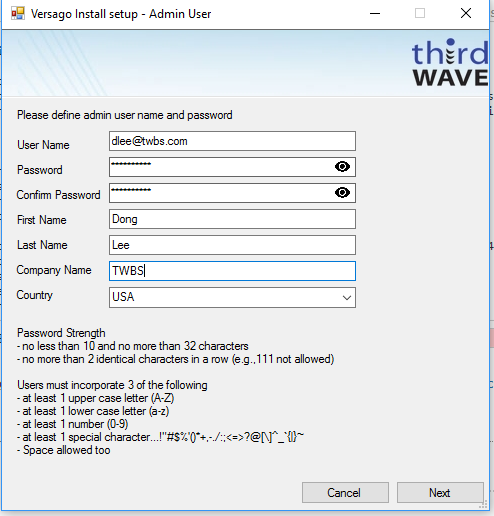
- Click [Next] to continue.

- The final installation page provides the option start Versago.
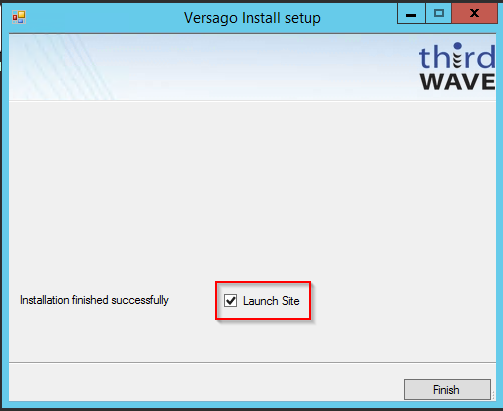
- Click [Finish] to complete the initial installation.
- The Versago home page is opened using “localhost.”
- There is a delay of several seconds while the initial configuration completes
- Once the Versago login/password fields are accessible the basic installation is complete.

Depending on your browser, you may receive a message that the “site is not secure.” This generally occurs when you are using https. There should be an option (you may have to look for it) to acknowledge the issue and continue. This most commonly is found with the Chrome and Firefox browsers.
Final installation Steps
The basic installation of Versago is now complete. Login using the Admin user created earlier, go to the Admin Console and complete the following steps.


