
This is an old revision of the document!
Table of Contents
Upgrade Instructions
Note that Versago 3 can only be upgraded from Versago 2.5.7. If you have a previous version of Versago, you must first upgrade to 2.5.7
Upgrade
- Backup your Versago database
- Backup the entire VersagoApp folder under the Versago installation path
- Execute the “setup.exe” file in the installation package . This will start the installation process.
- Always use the right-click > Run as administrator option to execute the installation.
- Click [Next] to continue from the first screen that is presented.
- Review and accept the End User License Agreement (EULA) that is presented.
- Click [Next] to continue.
- Confirm or change the installation location of the Versago files.
- Click [Next] to continue.
- Set installation options
- Enter the site's port. The default port for SSL is 443
- Select the desired certificate from the drop-down.
- Click [Next] to continue.

The installer will install/update necessary components such as the Crystal reports runtime and the .Net runtime. Please be patient since it may take a while
- The final installation page provides the option start Versago.
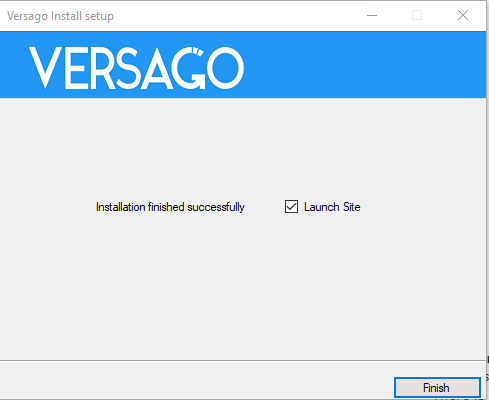

The migration scripts that update Versago's configuration data will be run when the site is launched for the first time. Please be patient.
Upgrade Considerations
Please review the following upgrade considerations.
The URL for Data Views and Forms is different from that of Versago 2.5. The configuration will need to be manually updated to the new address format. The following are some possible areas that will need to be updated:
- Saved browser bookmarks
- Custom and standard buttons with links
Form addresses have been obfuscated to stop users from accessing other records by simply changing the URL address.
If users with multiple roles exists, define the default role in the user set up page since the migration will assign set the default role to the last role assigned to the user.
The batch id generated on multi-select data views is now a much larger integer and it is not sequential.
If you use dashboards with charts, please review that the legends are properly assigned to the chart's Y axis.
What's New
Data Views
Reports have been redefined as Data Views to better reflect the functionality provided by this object.
Data viewing enhancements
- Reports are now termed Data Views. A Report such as a Crystal Report is one way of viewing data. Others are Lists, Schedules, and Charts.
- Drop-down filters in List Data Views allow the selection of multiple values.
- Columns in List Data Views can be resized.
- Columns in List Data Views can be moved via drag and drop.
- Multi-column sorting in List Data Views is available with the use of the CTRL key.
- User (nested) grouping is allowed in List Data Views.
- Crystal reports are displayed in new viewer.
- Data loading into List Data Views might be worth mentioning, infinite scrolling? (might be a time saver we can confirm).
Setup
- Data Views, Forms, and Dashboards now have both a Name and a Title property. The Title is what is displayed to the user in the navigation and at the top of the page. The Name is for admin reference.
- The admin-entered SQL Query used for Data Views has been enhanced to support more complex queries.
- Once a valid query is provided, any aspect of Data Views configuration can be done. Configuration does not have to happen in a certain order as it did in previous versions.
Filters
- User-Applied Filters (for Data Views) are displayed horizontally to the user to make more efficient use of the screen.
- A Line Break option has been added to provide more flexible lay-out of User-Applied Filters.
- Drop-Down filters allow users to multiselect values. Click the selected value to deselect.
Field Display
- Columns can be re-ordered via drag and drop when configuring Data Views.
- More format options have been added for numeric and date data types in Data Views and Forms.
Record / Payment Submission
- An option to make a Bizweaver call automatically after record submission has been added.
- Non-numeric fields can be selected as an Editable column for end users.
Charts
- The Chart setup UI has been totally redefined to provide a more intuitive configuration experience.
Forms
- Form Get, Delete, and Save actions are no longer executed via store procedure. They are executed directly via an api to the table holding the Form data. If you have customized any of the standard VGO2.5 stored procedures , you will need to adjust them.
- The Form Save action (not Save & New or Save & Close) now include a new option to refresh the form immediately after the save.
- The Multi-line text input control is now available in the Detail Section of a Form.
- The numeric keyboard will appear on tablets when a numeric form field has focus.
- A checkbox input control has been add to forms.
Other Configured Content
Dashboards
- The Dashboard setup page has been redesigned to allow drag and drop WYSIWYG configuration of the dashboard panels.
Menus
- The Menu setup page has been redesigned to provide the administrator with a modern and easy to use interface. Drag and drop can be used to assign content to the main menu or the quick actions section. The content assigned to menus can be easily identified by the visual indicators at the right of the object name.
Home Page Content
- Previous Banner and News & Announcements setup has been consolidated under Home Page Content.
- News & Announcements has been rename to Feed.
Site Theme
- The site Theme color selection has been expanded to allow the full color palette.
System Setup
General UI
- The user interface has been improved throughout the admin console.
- The addition of universal search allows the admin to quickly find an object (data view, form, role, menu, etc.) on the pages where they are listed in the admin console.
- Listing pages provide more and more useful information.
Users
- A default role can be selected (and changed) for a user with multiple roles assigned. The default role is indicated in green.
- Profiles have been renamed Data Filters.
Filters (Ex. Profiles)
- Only one table can be selected for each filter. Multiple filters can be applied to a User.
Connections
- A Connection's Server and Database can be changed. This feature can be used during deployment to update connections to production servers/databases.
- Connections to HANA multi-tenant databases allow the definition of tenant database instead of relying on the port number.
Export
- The option to ignore dependencies has been added to allow the administrator to export individual objects.
Settings
- System Setting have been reorganized on one page for ease of access and review.
- Password strength requirements follow industry standards.


