
This is an old revision of the document!
Table of Contents
Users
Users in Versago identify specific persons that can access the Versago environment and use its various functions.
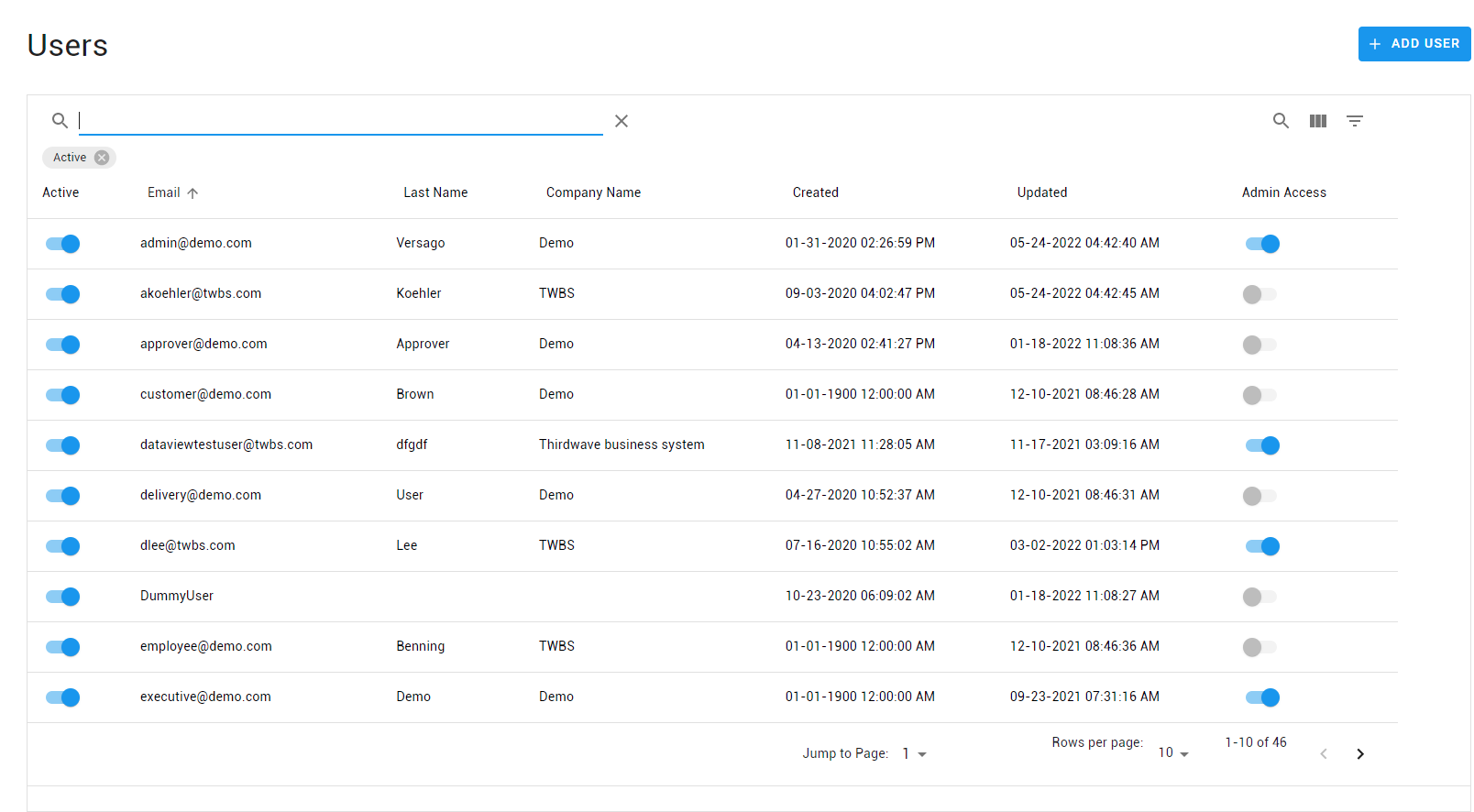
The Users page provides a list of existing users in the system
- Click the [Add User] button to create a new user.
- Click a row in the listing to edit a user.
- Toggle the [Active] switch to activate/inactivate a user.
- Remove the filter for Active users to list all users.
Use the standard icons to the search, filter and show/hide columns.
Add/Edit User
- Fields marked with * are required. All other values are optional.
- The Email field cannot be changed once the user has been added.
- The initial password can be set when creating a user. However, passwords cannot be changed by the admin once the user has been created.
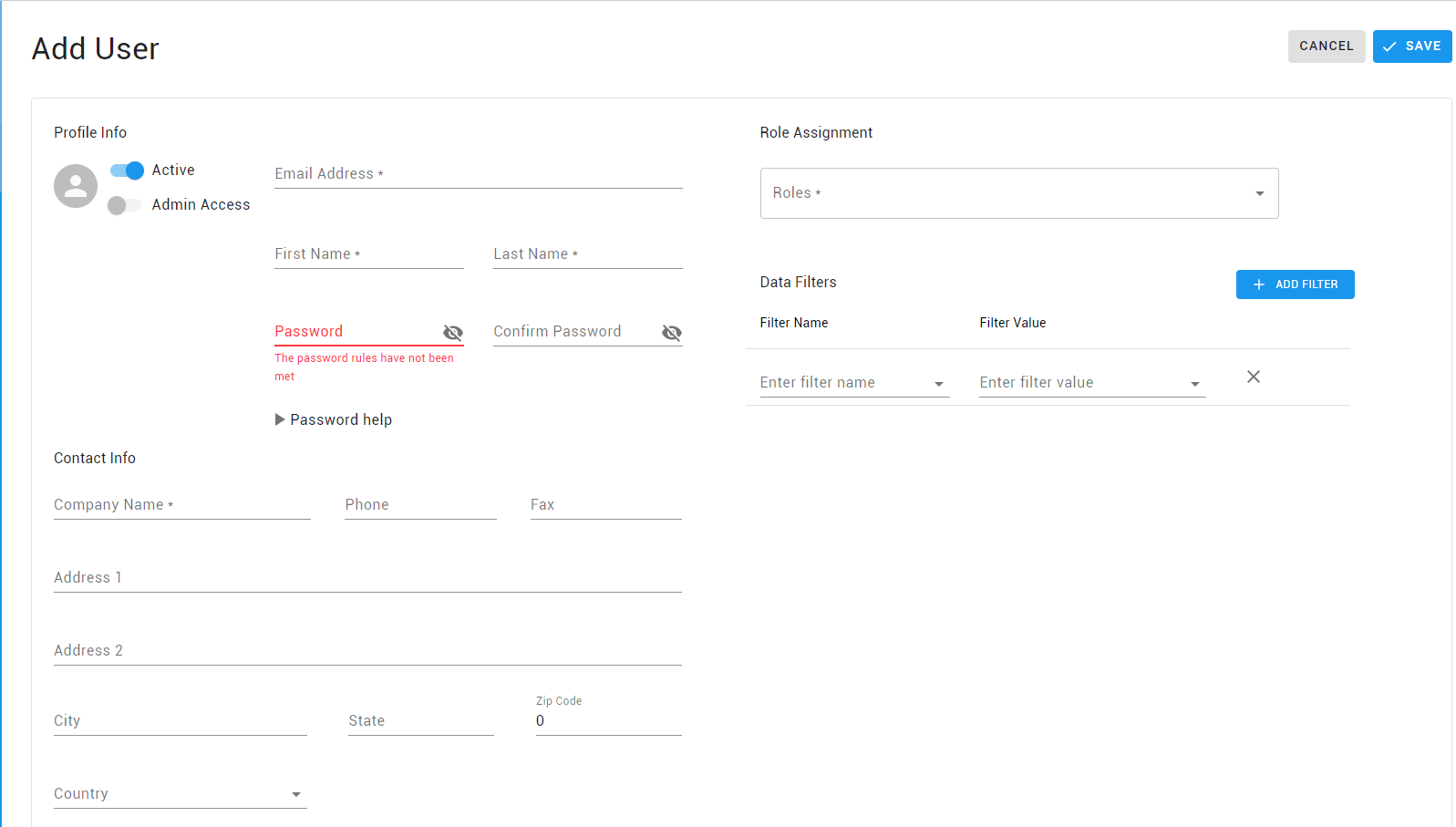
- Email is the key identifier for a user.
- The email must be unique within Versago.
- The email is not verified. This value must simply have the normal structure of an email address (e.g. name@domain.com)
- Password is the password to be used by this user.
- The password must conform to the rules established by Versago.
- Passwords are encrypted when they are stored in the database. A forgotten password cannot be recovered and must be reset.
- The Admin Access switch indicates if the user has access to the Admin Console.
- The Active switch indicates if the user is active in Versago.
- The Role highlighted in green denotes the Default role used for initial Menu display
- Add applicable Account Filters. Versago will filter all Data Views for the user if there is a matching field between the Account Filter and the Data View. Refer to Implementing User Account Filters for more details
Your Versago license limits the number of active users. If you exceed the number of licensed users, an error message is displayed. Contact Third Wave if you need to upgrade your Versago license.
Roles
Roles define user access to Configured Content. Every user and object must be associated with at least one role.
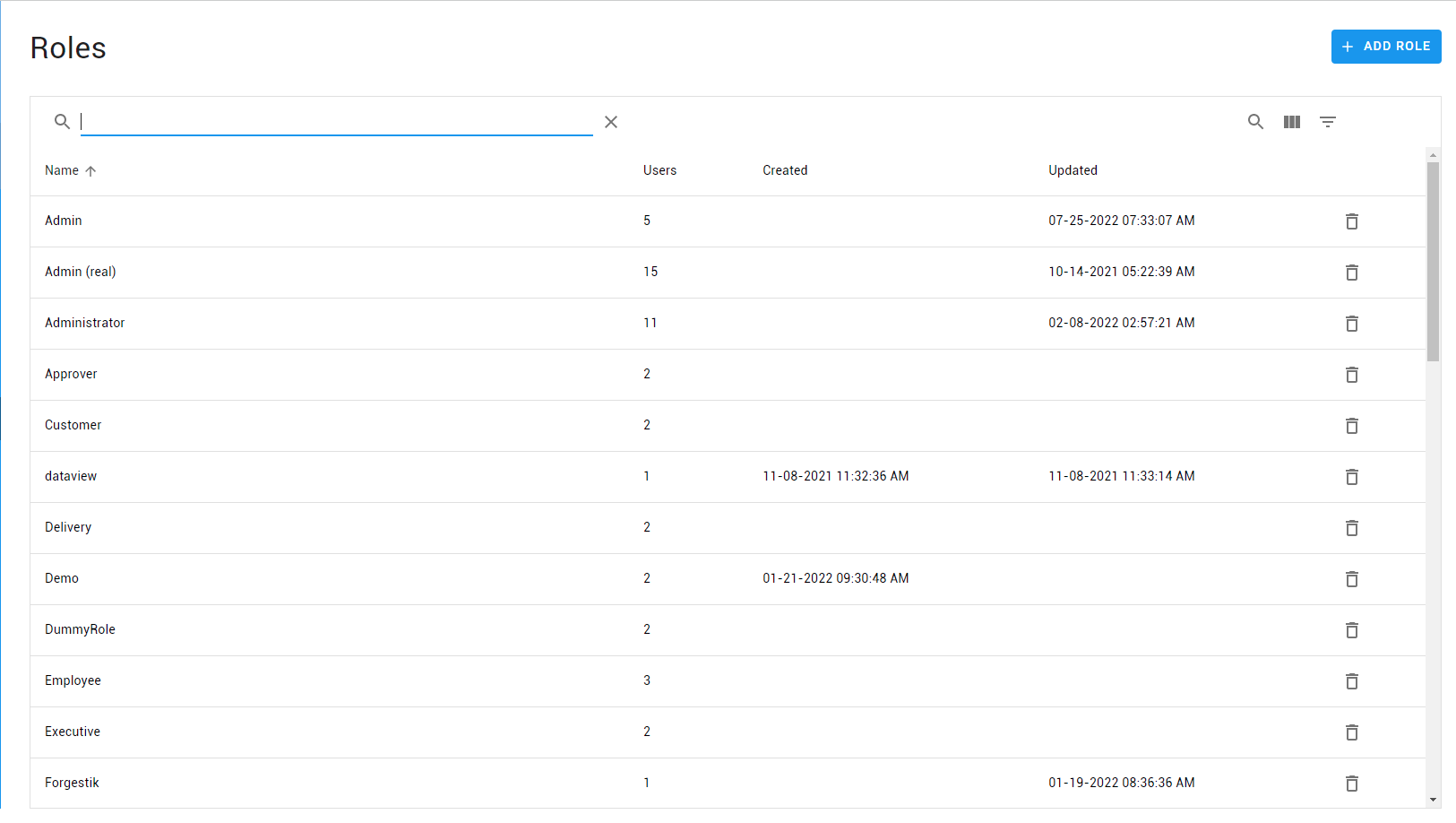
The Roles page provides a list of existing roles in the system
- Click the [Add Role] button to create a new user.
- Click a row in the listing to edit the role.
Add/Edit Role
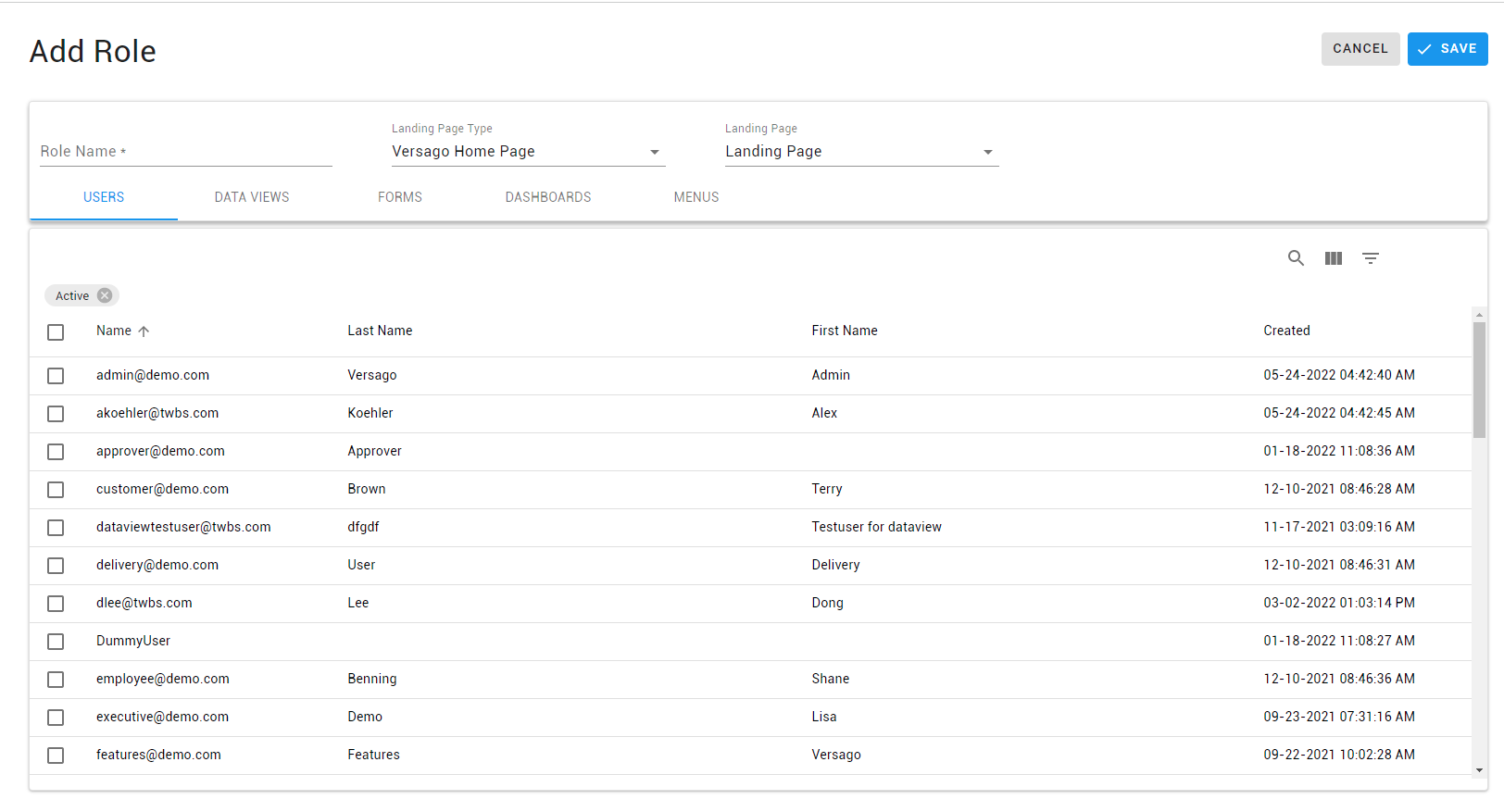
- Landing Page Type specifies what object type is displayed to the user associated with this role when first logging into Versago.
- Landing Page specifies the object for the home page. The options available are only those already associated with the role. If the user is associated with more than one role, the landing page of the default role is used.
- Navigate through the tabs to select users and objects for the role.
User Account Filters
User Account Filters are used to filter Data Views that contain a field that matches the account filter. It allows to control row-level data access for each user.
For example, assume you have a Data View that lists customer invoices. You want to allow your customers to log into Versago and only see a list of their invoices. By using a Account Data Filter in the Data that filters on the customer code associated with the user you can automatically limit the invoices in the list to those that have reference the user’s customer code.

The User Account Filters page provides a list of existing account filters in the system
- Click the [Add Filter] button to create a new user.
- Click a row in the listing to edit a filter.
Add/Edit User Account Filters

- Name is the unique name for this profile.
- Connection is the database where the table that holds the filtering values is located.
- Datasource is the data table from the previously selected connection where the filtering values are located.
- Field is the specific column from the data source that stores the filtering values
Implementing User Account Filters
Versago User Account Filters are used to automatically filter data view results based on specific values associated with a user. A typical example of how a profile could be used is for reports used by salespersons. The reports should only show the information associated with the salesperson running the report. Another example might be a report that shows information to customers. Again, the reports should only show the information for the customer running the report.
Profile Example Using Salesperson Filtering
To illustrate how a profile works we will use the salesperson example. We will be using the SAP Business One data structures.
In SAP Business One, a salesperson is assigned an internal numeric code. The database name of this value is “SlpCode.” When a sales document (order, invoice, etc.) is created, the numeric code of the salesperson is included in the document record. SAP Business One’s design is such that the salesperson code in the sales documents is also named “SlpCode.”
There are three things that need to happen in Versago for the process to work.
Create a Profile
First, a Versago profile is created. The profile uses the SAP Business One salesperson table (OSLP) as the source of valid values.

The “Profile Field Identifier” value is the field (column) name that the profile filtering process expects to see in the report data.
Assign the Profile to a Versago User
Once a profile has been defined, we must tell Versago what values are valid for a given user. This is done in the user setup as described elsewhere in this document.

In some cases, a user may need to see information for more than value. This would be the case where a sales manager needs to see not only their information, but also the information for salespersons that report to them. In these cases you simply assign multiple profile values as shown above.
Use the Profile in a Report
Since the filtering process takes place when a report is executed, we need to also define what profile(s) to use in the report. This is done in the report maintenance process.

As shown in this example, you simple indicate the “Filter Type” as Profile and select the desired profile as the “Filter Name.”
Using our example, if the user described above runs a report using the “SlpCode” profile, they will only see records where the “SlpCode” value equals 3 or 5.
Note: Both profiles and parameters can be used in a report
Multiple Profile Values
In the examples above, the value “SlpCode” has been present in the data being reported (the sales document). So, the profile filtering works with no issues. However, there may be situations where the name of the filtering column does not match This value in the source table. This situation can be addressed using multiple values in the profile setup.
In this example, we have some documents where the column to be filtered is named “SlpCode” and others where the column to be filtered is named “SlpCodeX.” As shown in the image below, we have created two profile entries.

One shows that the filtering column name might be “SlpCode” and the second shows that the filtering column name might be “SlpCodeX.” Now, we can use the same profile and the filtering will occur if a column name “SlpCode” or “SlpCodeX” is found.
Profile Filtering by Versago User
When Versago Forms are being used, you may want to restrict a report that shows the records created via a form to the user that is running the report. You will need to do three things for this to work.
Capture the Versago Information in the Form
Third Wave suggests that when you create a Versago form you include three values: CreatedBy, CreatedById, and CreateDate. The column names are not significant; they are just suggestions. “CreatedBy” is the user name (Email). “CreatedById” is the numeric ID assigned to each Versago User. “CreateDate” is the date (or date time) the record is created. See the document “Versago Forms – Default Values” for information on how to capture these values automatically.
Create a Profile for Versago Users
Here is a sample of how a profile for this purpose would be set up.

In this case the column name being used for filtering is “CreatedBy.”
Use the Profile in the Report
Use this profile in a report of records created via a Versago form. The records will automatically be filtered based on the user running the report.


