
mbstring extension must be loaded in order to run mPDF
bizweaver:exec_schedule
Table of Contents
Scheduled Run
A schedule is created by selecting the desired combination of options as described below. If both the schedule and the workflow are enabled, the workflow will execute automatically at the appropriate time.
Creating a Schedule
Open the workflow and click the Schedule icon  to open the Schedule Information window.

- 3. Status Indicates if the schedule is on or off.
- Schedule will not run if off is selected
- 4. Schedule Type
- Recurring - defines the occurrence of a workflow over multiple days
- Single Day - defines the occurrence of a workflow on a single day
- When running a One-Time schedule, the scheduler display will change, and only one date can be selected. This will be the date the schedule runs. Below are the tabs that will be displayed for modification.
- 5. Save Schedule
- This will save the schedule and the workflow.
- The Save workflow compiler will open once this button is clicked.
- 6. Close
- This will close the schedule, and no changes will be saved.
Schedule Tab
- 1. Start Date and End Date define when the schedule starts and ends.
- Start Date will default to the current date.
- When a pre-existing schedule is opened, the start date will reflect the current date. This will be the new start date when the schedule is saved (it cannot be back-dated). If Cancel is selected or the scheduler window is closed, the start date will remain.
- No End Date option is used if you do not want the schedule to have a set end date.

- 2. Recurring select the type of schedule.
- Options are Daily, Weekly, Monthly.

- 3. The options in this section change depending on the type of schedule selected.
- Daily
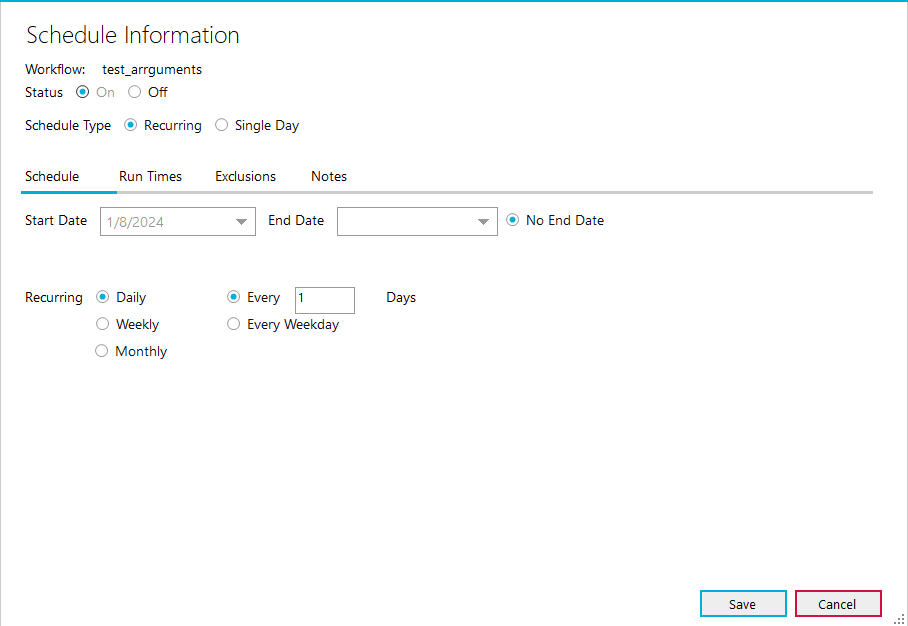

- Weekly


- Monthly
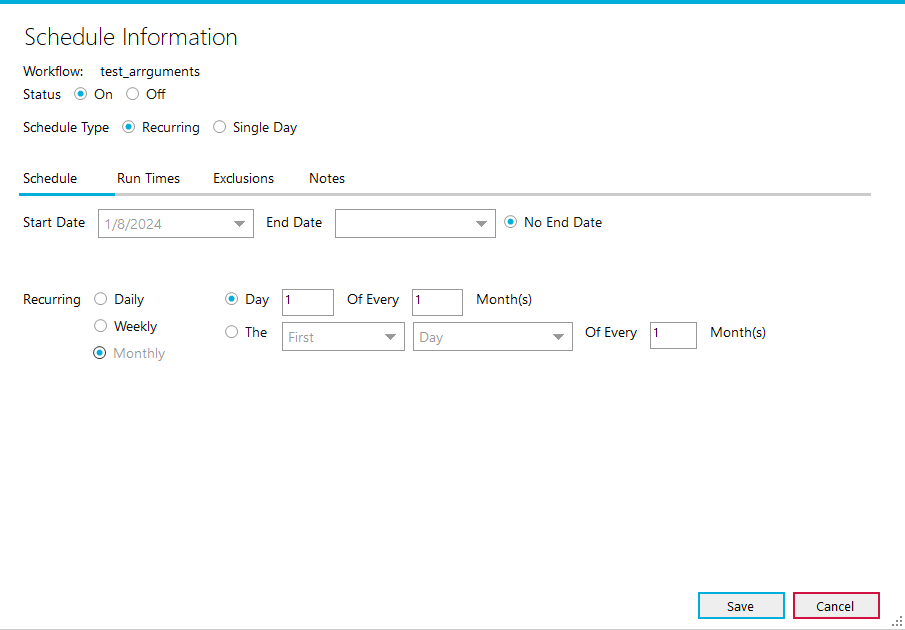
- Day Option - Can select a day within a month to run for a select interval of months.
- Example the 1st day of Every 1 Month will run once a month on the first day of that month.
- The Option - Can select the First, Second, Third, Fourth, and Last of a month, selecting the Day or Weekday option, or a specific day of the week.
- The Weekday selection can only be used in conjunction with the First and Last options within this menu.

Run Times Tab
- 1. Run At defines a specific time a schedule should run during a day.

- 2. Run Continuously defines a schedule running all day during the selected schedule type.

- 3. Run Every defines a schedule running during a set interval of time
- Can run schedules from 12:00 AM to 11:59 PM
- Bizweaver uses the indicated interval period (ex. 5 mins, 12 mins, 20 minutes, i.e., whatever the user enters) calculated from the selected From time to determine the actual first run of the workflow within the selected From-To range.
- The From and To times can only be selected within a given date and cannot span multiple dates/days
- Example: Run Every 7 Min From 02:00 AM To 04:00 AM. The first run of the workflow will be at 2:00 AM. It will run every 7 min within the hour until there is no available time left within that hour. Regardless of when this last 7 min interval occurs in the hour (2:56 AM), it will resume at the beginning of the next hour (3:00 AM). The nature of From/To ranges that span hours is that the interval restarts at the beginning of every hour.
- Important Note: From/To ranges are inclusive of the last hour in the range. In the above example, the 7 min interval will continue through the 4:00 AM hour.
- Minutes - Can choose from 5 to 59 minutes as an interval
- Note the interval period cannot be longer than the From-To period
- Hours - Can choose from 1 to 23 hours as an interval
- Note the interval period cannot be longer than the From-To period
- Do Not Run Between - defines a period that the workflow will not run within any given schedule.

Exclusions Tab
Exclusions are dates (full days) that you can apply to any given schedule on which the workflow will not run. The maximum amount of exclusions is 10.
- 1. Do Not Run On defines a specific day that the workflow will not run.
- Clicking the add button adds another exclusion.
- When the exclusion date has passed the “X” will change to red.

Notes Tab

bizweaver/exec_schedule.txt · Last modified: 2024/09/09 13:04 by dlee
Except where otherwise noted, content on this wiki is licensed under the following license: CC Attribution-Noncommercial 4.0 International


