
Table of Contents
WF_Exec Tool
The WF_Exec tool allows an external batch file (most common) or program (.exe) to be executed via a workflow step. The most common use of the tool is to execute a batch file that, in turn, executes FTP functionality.
The tool consists of two functionality tabs.
Batch File/Program Execution
The Run tab is used to execute an external batch file or program. This is the most commonly used function of the WF_Exec tool.
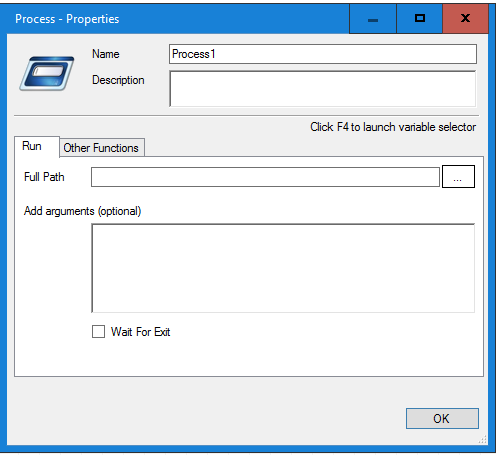
- Select (or enter) the full path to the batch file or program file to be executed.
- Enter any arguments (parameters) to be passed to the process being executed.
- The format of the arguments must match the format expected by the external application.
- Double-quotes may be used as needed to support Windows requirements.
- Select the “Wait for Exit” checkbox as needed.
- When this option is selected the workflow will pause until it receives an exit code back from the external application indicating that its processing is done.
- When this option is not selected the workflow will continue to its next step without waiting for the external application to indicate it has completed.
Windows Services Management
The Other Functions tab can be used to start, stop, and restart Windows services. This functionality should be used with caution since stopping a running Windows service could cause unintended issues.
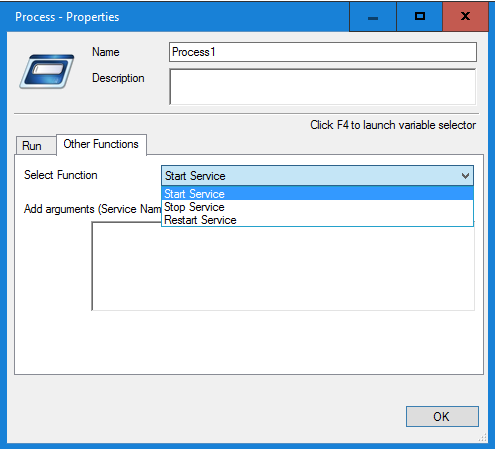
- Enter the name of the service to be affected. This process is similar to using the Windows net start and net stop functions.
Executing A Bizweaver Workflow
The WF_Exec Tool can also be used to call Bizweaver workflows. This process is normally handled by the WebServices 2 Tool but there are some cases the WF Exec Tool is needed.
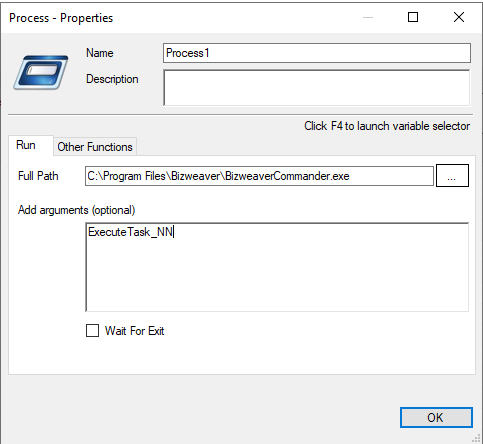
- Full Path: This is the path to where Bizweaver Commander was installed.
- C:\Program Files\Bizweaver\BizweaverCommander.exe
- Add arguments: Enter the workflow ID to be executed.
- ExecuteTask_NN where NN is the workflow ID* Add a space to add variables to be sent to the workflow to be executed
- If sending multiple variables add a space for each one
- the receiving workflow should have the variables in lowercase of arg1,arg2, etc adding a number for every subsequent variable to be passed.
Execute Variables
| Name | Description |
|---|---|
| Arguments | This indicates if there are any arguments that are being passed into an application |
| FullPath | This indicates the full path of the application or file you are accessing |
| FunctionType | This indicates what the application is doing (Run for run tab and Functions for Function tab ) |
| WaitForExit | True or False if the wait for exit checkbox is selected |
| StepMessage | During a failure the reason for failure will be populated here |
| StepStatus | True or False |


