
This is an old revision of the document!
Table of Contents
Setup
Basic configuration about the data view is defined on the Setup page.

Information
- Name is a unique name for this data view.
- Title is displayed in the Versago user menus
- Category is the grouping mechanism used in the default Versago menu structure.
- Previously defined categories can be selected from the drop-down list. A new category can be created by typing the desired value and selecting Add from the drop-down.
- Description is an optional internal explanation of the data view.
- Instruction is displayed at the top of the user data view page.
Availability
- Roles define the group of users that have access to the data view.
- Activate the Public option if the data view should be available prior to a user logging in.
- Activate the Do not show in menu option when you have a report that you do not want to be displayed in the standard Versago menu structure.
- The most common use of this option is when the report is only used as a lookup tool in Versago Forms, or as a sub-report in other Versago Reports.
Presentation Format
- List or Chart format is the default “row & column” presentation.
- Enable Paging is used in conjunction with Page Count if you want to ensure that a specific number of records are displayed on each page.
- The Schedule format presents the data view in a calendar. See the Schedule page for additional configuration information.
Connection
- Select the Connection Name from the list of configured connections. See the Connections page for information on configuring database connections.
- When a connection is selected, the associated database name is displayed to the right.
- Select the Data Source Type
Data Source Types

SQL Query
When this option is selected, a SELECT SQL statement can be entered manually or pasted from another source such as SQL Server Management Studio.
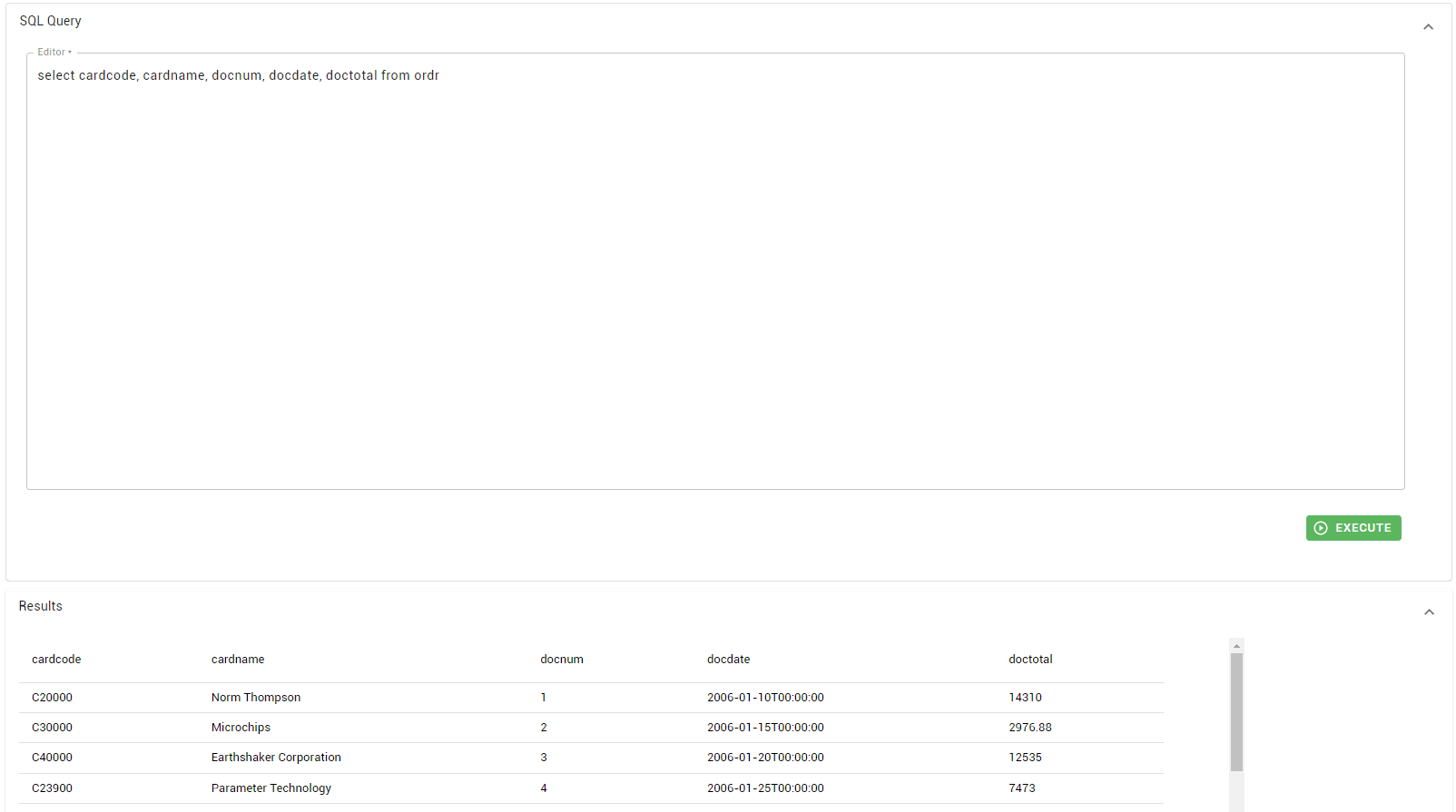
- Enter the SELECT statement in the “Editor” area.
- Click [Execute] to validate the statement.
- Standard SQL error messages will be displayed if errors are encountered.
- If the statement is correct, the first 50 records of the dataset are displayed in the “Results” area.
SQL Statement Restrictions
- An Order By clause cannot be used except in cases where the statement contains a TOP operator. The ordering (sorting) is handled by the data view's Field Display settings
- Computed values in the SQL statement must be assigned an alias.
B1 Query
This option should only be used with connections to SAP Business One. This option allows to select user queries built in SAP Business One.
Stored Procedure
In some rare instances it may be necessary to use an SQL Stored Procedure as the data source. This approach is not recommended if any other option is available.
View
This option allows the use of a database View as the data source
Crystal Report
A different data presentation option is provided through the Crystal Report method. In this case a Crystal Report is developed outside of Versago. The report is then registered in Versago and used as the presentation method.
- Select the Crystal Report object type.
- A dialog box is presented to select the desired Crystal Report.

- Click [Choose File] to open the standard Windows Explorer tool.
- Locate and “open” the desired Crystal Reports file (.RPT).
- The file name is displayed in the Versago dialog.
- Click [Select] to associate the Crystal Report file with the Versago report.
- Once the file has been selected you will see file path information displayed in the Report Data Source box.

The Crystal Report source file is copied from the original location to the folder “C:\Program Files (x86)\TWBS\Versago\Websites\Versago Administration Web Site\Reports.” A number is added in front of the file name to ensure it always unique. If the Crystal Report needs to be modified, you can either modify this file or modify it elsewhere and re-register the new version in Versago.
General information about configuring Crystal Reports for use with Versago and Bizweaver is found here.


