
versago3:oauthsetup
Table of Contents
SMTP OAuth setup with Microsoft Exchange Online
Sign in to Azure Portal
- Go to https://portal.azure.com
- Sign in with your Microsoft 365 admin account
Register a New App
- Navigate to App registrations
- Select App registrations from the left menu
- Click '+New registration'.
- Fill out:
- Name: SMTP Email Sender App
- Supported account types: Accounts in this organizational directory only (Single tenant)
- Redirect URI: Leave blank
- Click 'Register'
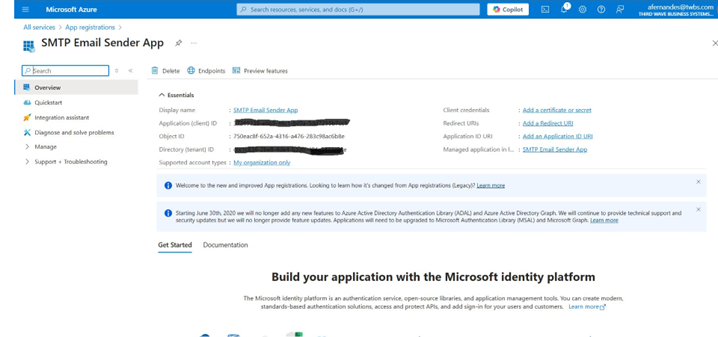
After registration, note:
- Aplication (client) ID → Client ID
- Directory (tenant) ID → Tenant ID
Create a Client Secret
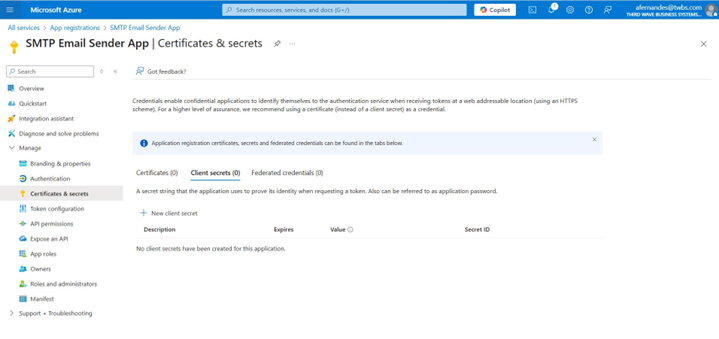
- In your app registration screen, click on “Add Certificate & secret”.
- Click “+New client secret”.
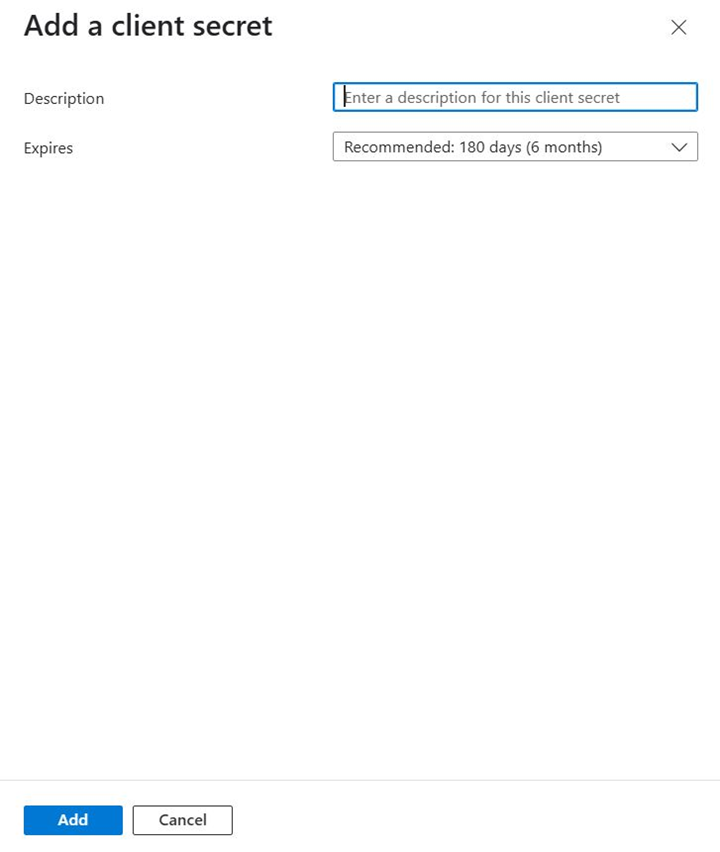
- Provide a description (e.g. SMTP Auth Secret).
- Set an expiry (6 months, 12 months or 24 months)
- Click “Add”
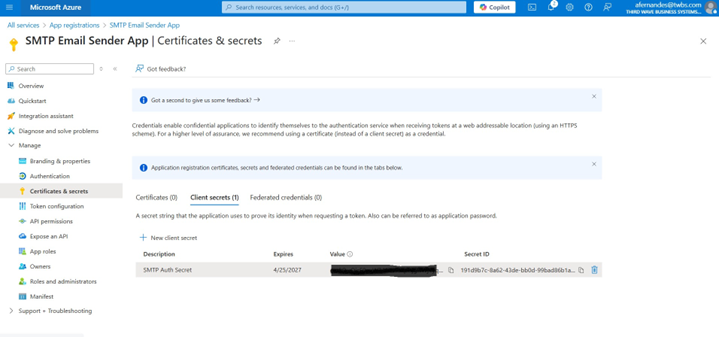
Copy the value immediately - it is your Client Secret. You cannot view it later.
Assign API Permissions
- Go to API permissions in the app.
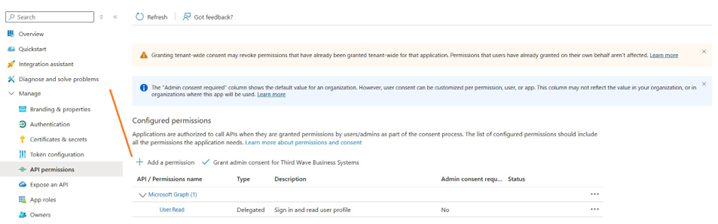
- Click “+Add a permission”.
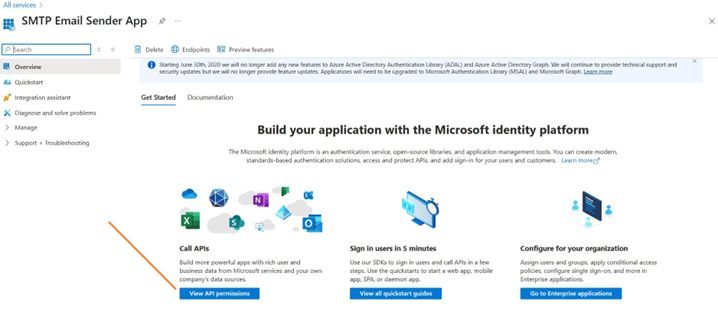
- Select “APIs my organization uses”.
- Search for and select “Microsoft Graph”.
- Choose “Application permissions”.
- Expand Mail and check “Mail.Send”.
- Click “Add permissions”.
- Click “Grant admin consent” to approve.
Summary of Required Information
- Tenant ID: Found in Azure AD → Directory ID.
- Client ID: Found in Azure AD → Application ID
- Client Secret: Copied from Certificates & Secrets
- SMTP Scope: Mail.Send for Microsoft Graph.
versago3/oauthsetup.txt · Last modified: 2025/05/16 16:30 by afernandes
Except where otherwise noted, content on this wiki is licensed under the following license: CC Attribution-Noncommercial 4.0 International


